





























































































































































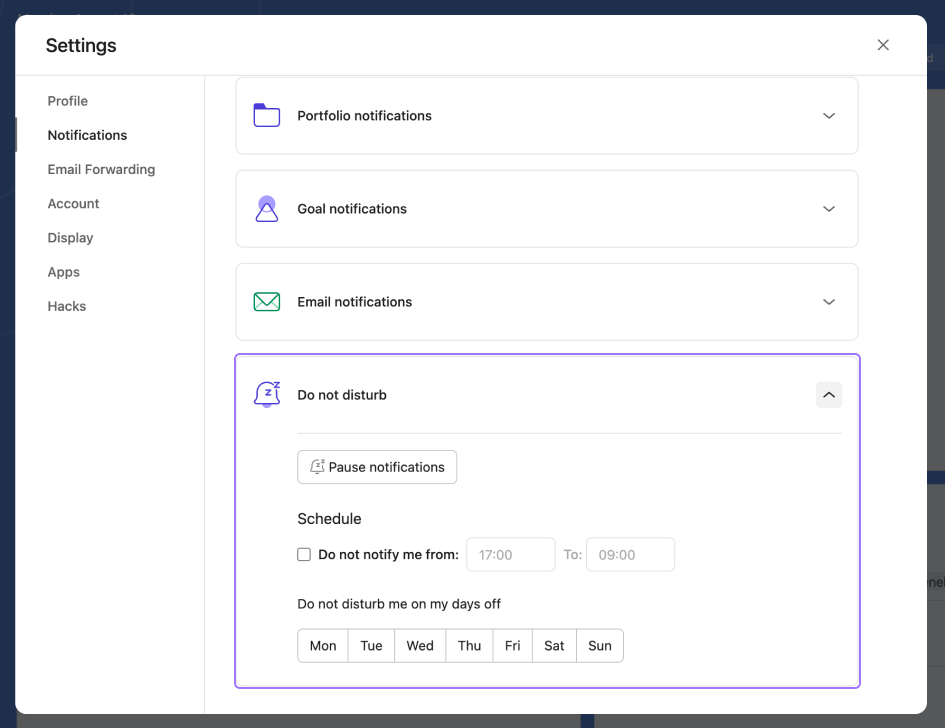
Asana’s published Do not disturb panel separates pausing alerts from schedules and days off. Compare the intended test time with these controls; the pictured panel does not establish that Do not disturb is active in your account.[1] View full-size product image
A missing email, an empty Inbox view and a silent browser are different Asana notification problems. Pick one real update from another person and trace where it stops. Turning every notification on creates noise without showing which part of the delivery path failed.
Choose a repeatable event and the intended destination
Use an agreed non-sensitive task with the intended recipient and a colleague. Record the account, organization or workspace, event type, time and expected destination. Ask the colleague to make the test update; testing only your own edits will not reproduce the usual recipient-notification path.
Inbox shows activity for the work you participate in within the selected space. It is an update feed, while My Tasks is assigned work. Inbox does not show notifications for your own actions. Inspect its filters and Archive before concluding that an update never arrived.[3]
| What you can observe | Investigate first | Keep the distinction |
|---|---|---|
| Task update exists, no matching visible Inbox item | Participation, selected space, filters and Archive | Missing from the current view is not the same as never generated |
| Inbox update exists, no email | Email category, selected address and reading/archiving history | Email is a separately controlled destination |
| Inbox works, browser remains silent | Asana browser setting, site permission and system notification policy | App activity does not prove a desktop alert was allowed |
| Everything is quiet during a planned period | Asana Do not disturb and the agreed schedule | An intentional pause is not a delivery fault |
Confirm participation and narrow the Inbox view carefully
Check whether the account is assigned to or collaborating on the task and whether project notifications are relevant to the expected event. Temporarily remove a restrictive Inbox filter to locate the test update, then restore a useful working view. Keep that view check separate from changing the task’s audience.
Read the task history alongside Inbox. If a colleague’s comment is present but the expected notification cannot be found, record both observations. If the comment itself is absent, the problem starts earlier than notification delivery. Do not create a stream of repeated mentions just to force a badge.
Check the chosen email category, not just the mailbox
In Settings → Notifications, inspect the appropriate email category. Asana can batch some updates and suppress an email when the related notification is archived promptly: the documented windows differ for critical and other updates. An immediate one-to-one email for every visible event is not the acceptance criterion.[2]
For a clean test, leave the new notification unarchived while checking delivery and the configured category. Record the test time and check the intended mailbox, junk folder and any organization mail handling. If app activity succeeds but mail does not, hand that specific result to the mail administrator without changing project permissions.
Check browser permission and the planned quiet period
Asana’s Do not disturb controls pause push and browser notifications and suppress notification dots while active. Review the schedule and days off rather than disabling it permanently. Browser delivery also needs the intended Asana notification choices and the browser’s permission for the site.[1]
The published image is an example of the Asana control, not a recommended schedule. Align any temporary test with the user’s agreed availability. If the device intentionally blocks banners during focus time, compare another permitted delivery route instead of removing the user’s system-wide quiet-hours policy.
Run a small acceptance test
This illustrative test matrix uses one colleague’s comment and an agreed notification category. It is not evidence of a customer result. Change only the setting relevant to the observed failure.
| Step | Evidence to record | When to stop changing settings |
|---|---|---|
| Colleague adds one test update | Original task URL and event time | The intended update exists |
| Recipient checks Inbox without a narrow filter | Matching item or exact absence | The app route is explained |
| Recipient checks the configured email route | Category, address, delivery and read/archive timing | Email expectations match the enabled route |
| Test browser alert at an agreed available time | Permission, quiet-period state and observed banner | The required alert appears without losing the intended schedule |
If escalation is needed, send this compact record rather than a list of settings already toggled. Avoid screenshots containing unrelated project names or other people’s private work. Once the required route works, restore intentional filters and schedules and stop enabling additional destinations.
Choose the next task
If the original task itself cannot be found, use the missing-task checks. If the recipient cannot open the project or task, use the account, invitation and permission checks.
Frequently asked questions
Is Asana Inbox the same as My Tasks?
No. Inbox is an activity feed; My Tasks is assigned work. A missing notification should not be diagnosed from an empty task list.
[3]Why did my own Asana edit not notify me?
Inbox activity is for actions performed by others. Use a colleague’s agreed test update when checking recipient behavior.
[3]Can an Inbox filter hide an update that already arrived?
Yes. Inspect the active filter and Archive in the correct space before treating the event as undelivered.
[3]Does an Asana Inbox update guarantee an email too?
No. The email category and notification-handling behavior matter. Check the selected route rather than assuming every event generates an immediate message.
[2]Can quickly archiving an Asana notification suppress its email?
Yes. Asana documents suppression windows for critical and other notifications. Leave a fresh test unarchived when evaluating the email route.
[2]Does Do not disturb delete the underlying task update?
No. It controls alert delivery and dots; investigate the actual task and Inbox separately. Do not infer deletion from a silent browser.
[1]Should I disable Do not disturb permanently to test notifications?
No. Use an agreed available test period and restore the intended schedule. A working diagnostic should not remove someone’s quiet-hours policy.
Why does Inbox work while browser alerts do not?
Inspect Asana’s browser notification choices, the site permission and the device’s notification policy. These are separate from the existence of the task update.
[1]Should I follow every project to avoid missing updates?
Follow the work that needs your attention and test a relevant event. Expanding every subscription adds noise and can conceal the original delivery problem.
What should I record before escalating an Asana alert issue?
Record the task URL, account and space, another person’s event time, expected destination, actual Inbox result, email category and quiet-period state. Exclude unrelated private work.


