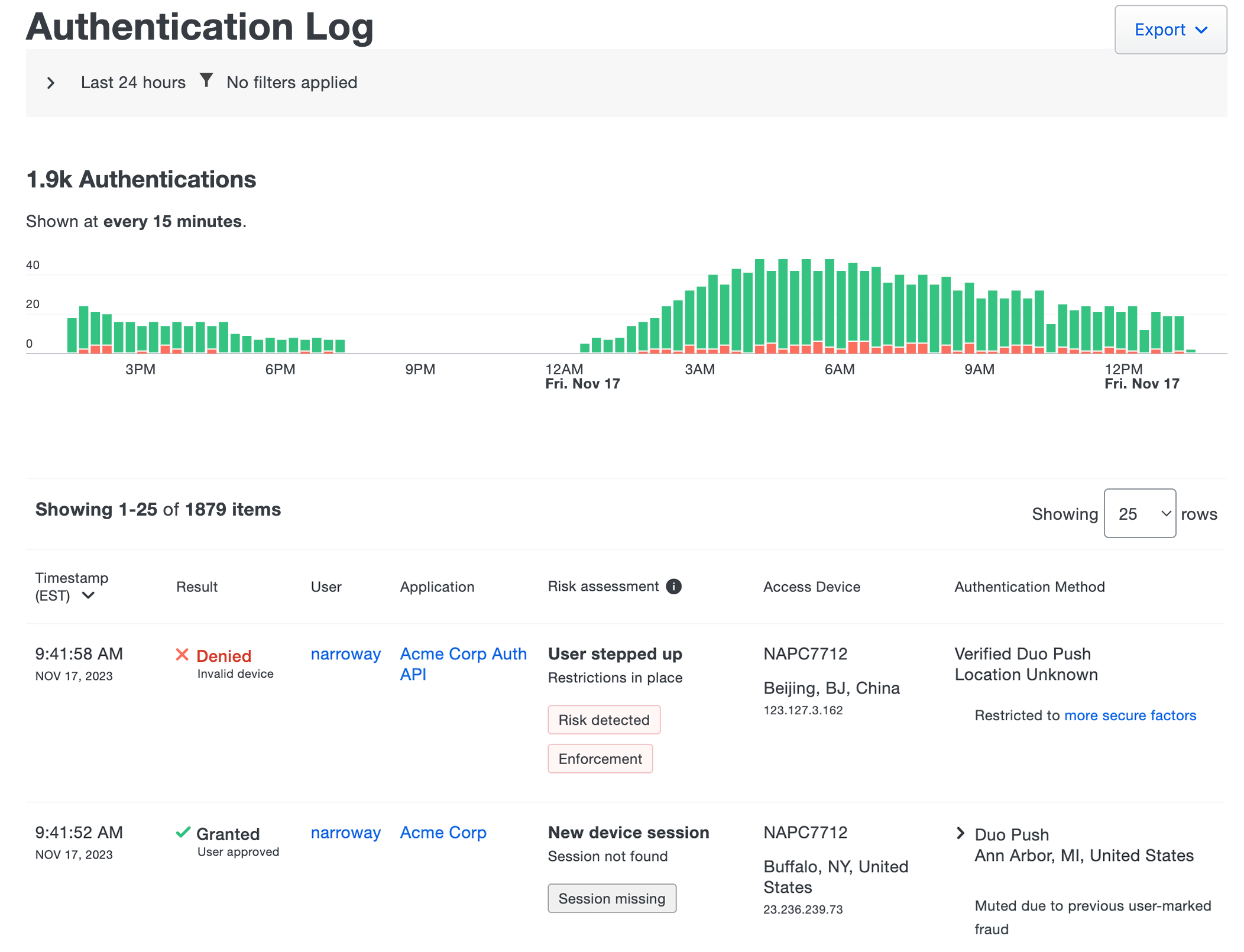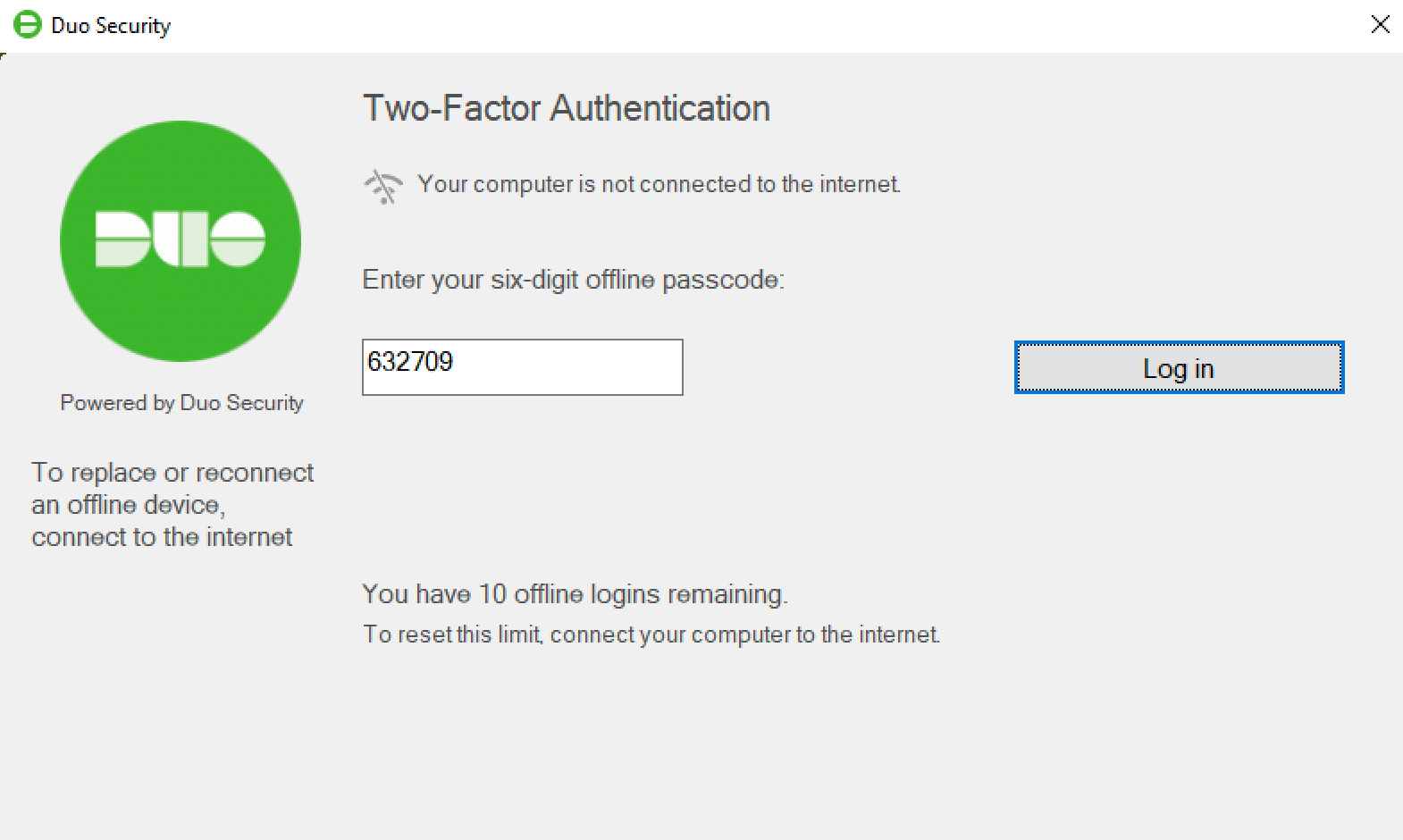




















































































































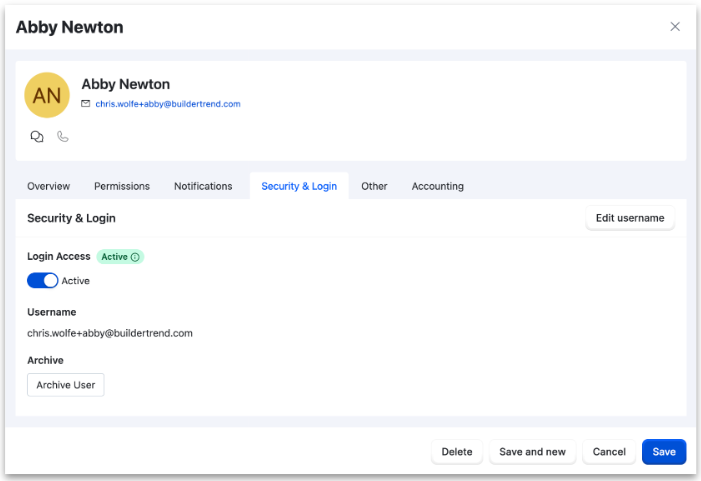
Buildertrend’s Internal Users example shows the Security & Login tab with Login Access still Active and a separate Archive User control. Turn off login at the authorized cutoff, then verify actual status and finish the record-preserving handoff; this screenshot does not show a completed cutoff or archive.[1] View full-size image
Use this Buildertrend guide to resolve four different questions: which features the role permits, which Jobs the person can enter, which notifications reach them and whether login is Active. When a project manager leaves, stop login at the authorized time and let the remaining team complete reassignment and archival. A successful login, an assigned Job or an MFA prompt answers only one part of that access review.
Buildertrend’s current Internal Users guidance assigns permissions through roles rather than one-off switches on each person. It provides default roles, allows custom roles with View, Add, Edit, and Delete choices, separates Org Owner from Admin, and distinguishes Active, Inactive, Archived, and Deleted user states. Job Access and notification settings add additional layers that must be tested alongside the role.[1]
This guide turns those controls into an identity lifecycle for employees and long-term internal users. It also explains the narrower scope of Buildertrend’s documented multi-factor authentication requirements, which currently center on payment and Xero integration permissions. The goal is to make onboarding, access changes, sensitive actions, and departures predictable without overstating what the platform enforces.
ALLMSP coordinates Buildertrend deployment and configuration from Lawrenceville for clients in Suwanee, across Gwinnett County and Metro Atlanta, and throughout Georgia, through one accountable in-house workflow from discovery and correction through testing, training, and ongoing support.
Key decisions at a glance
- Manage permissions through Buildertrend roles and reserve Org Owner or Admin access for the few people who genuinely require it.
- Treat feature permission, job access, notification delivery, and account status as separate checks during onboarding.
- Scope MFA statements accurately: Buildertrend currently documents mandatory MFA for specific payment and Xero-connected permissions.
- Disable login access promptly during a departure, transfer operational responsibility, and archive rather than delete a previously active user.
- Review internal users, subcontractor access, and trusted payment authority on a recurring schedule, not only after an incident.
Design Roles Around Duties and Consequences
Begin with a responsibility matrix rather than Buildertrend’s permission screen. List who may view client information, change schedules, publish Daily Logs, approve scope, manage bills or purchase orders, connect accounting, edit users, and administer subscription or payment settings. Then map those duties to a default role or a narrowly tailored custom role. This makes every permission traceable to a business need instead of a person’s seniority.
Buildertrend currently differentiates Org Owner and Admin, and its permission matrix describes more focused roles such as Project Manager, Bookkeeper, Field Crew, Purchasing Coordinator, and others. Use the least-powerful suitable baseline. Where a standard role includes too much or too little, create a custom role and document why its View, Add, Edit, or Delete capability is necessary for each feature.
Do not create many near-identical roles. Name each custom role for a stable job function, record its owner, and compare it with the current Buildertrend permission matrix after significant product updates. High-impact rights deserve explicit review: Internal Users, accounting integration, client invoices, purchase and payment functions, and deletion of financial or project evidence. A role inventory that no one understands is not a control.
- Limit Org Owner assignments to accountable executives and keep Admin membership small enough to review by name.
- Separate ordinary project management from user administration, accounting connection, and payment authority where staffing permits.
- Document the business reason and owner for every custom role, then retire unused or overlapping variants.
- Review View, Add, Edit, and Delete separately because the ability to remove evidence carries a different consequence than reading it.
Onboard With Four Separate Access Checks
Buildertrend says Org Owners and Admins can add or edit internal users, assign a role, and send an invitation. Use a verified company email address and a named manager’s request before the invite is sent. The selected role answers what features the person may use, but it does not by itself prove which projects they should enter, which alerts they need, or whether their login should already be Active.
Test four layers for every new internal user: role permissions, Job Access, notification settings, and login status. Ask the manager to validate a sample open job from the user’s perspective and confirm access to only the needed statuses and features. Buildertrend’s troubleshooting guidance notes that a person may be absent from a notify list when they lack the relevant Job Access or feature permission, which is why a successful login is not a complete acceptance test.[2]
Treat subcontractors and vendors as a distinct population rather than making them internal users for convenience. Buildertrend provides Sub/Vendor profiles, job-specific access, an invitation flow, and tailored feature visibility. Job Access can be required for assignment even when a Sub/Vendor is inactive, while the invitation that enables portal credentials is a separate decision. Document which external companies may see schedules, files, Daily Logs, purchase orders, or approved changes on each job.[5]
- Require a manager-approved request that states role, job list, start date, notification needs, and any financial responsibilities.
- Use a company-controlled email identity and complete adjacent email, device, and file-access onboarding in the same checklist.
- Test one representative Job and one sensitive feature before declaring the account ready for production use.
- Review client and Sub/Vendor portal access separately, external collaboration should never depend on shared internal credentials.
Apply MFA Where Buildertrend Actually Requires It
Buildertrend documents MFA for financial workflows, not one simple policy that can be assumed for every account. Its Payments article says every user completes MFA for Bill Pay-only use, while its Xero/MFA guide describes users involved in processing Bill Pay transactions. Both distinguish combined Client Payments/Bill Pay use and Org Owner requirements. Because those published scopes differ, confirm enabled products, actual enrollment prompts and the current account rule with Buildertrend Support before certifying coverage. Do not infer that unenrolled field users are protected.[3]
For the documented financial workflow, Buildertrend describes SMS or an authenticator application and a recovery code. Protect the recovery code in an approved vault, keep it out of project notes and confirm enrollment before a payment deadline. If a user loses the MFA method, the Payments guide directs them to Support for identity verification and reset. An MFA enrollment record still does not establish that the user has appropriate payment authority.[4]
MFA does not replace payment segregation. Review which people can send payments, edit subcontractor or vendor contact details, mark bills or purchase orders paid, or connect financial systems. Buildertrend describes a Trusted Payments concept for authorized payment users, with Org Owners receiving authority by default in the documented workflow. Pair that platform setting with an independent approval rule and a call-back procedure for changed banking instructions.
- Inventory every Buildertrend user who can process payments or exercise a permission that triggers the documented MFA workflow.
- Record the enrolled method and recovery custodian without collecting one-time codes or secrets in ordinary support tickets.
- Use a second-person review for new payees, changed banking details, and unusual outbound payment requests.
- Recheck Buildertrend’s current payment and integration documentation whenever roles, features, or accounting connections change.
Offboard Access Without Erasing the Project Record
At the effective departure time, turn off Buildertrend Login Access so the internal user becomes Inactive. Buildertrend explains that an Inactive user cannot log in but may still appear in assignments for internal tracking. Coordinate the same cutoff across the person’s company email, identity provider, mobile device management, remote access, password vault, and shared drives, changing Buildertrend alone does not close those adjacent paths.
Do not postpone an urgent authorized cutoff because an RFI, approval or project handoff is unfinished. Record the remaining work as an exception under a current authorized owner; do not keep the departing login Active to preserve assignments. Inactive status can retain assignment visibility, while archival removes the person from dropdowns.
Before archival, transfer operational responsibility. Search active Jobs for schedules, To-Dos, Daily Logs awaiting follow-up, RFIs, approvals, purchase commitments, client conversations, and accounting tasks assigned to the departing person. Reassign each item to a named owner and verify any Trusted Payments or financial permissions have been removed. A manager should sign off that the field and office know who now owns urgent decisions.
Use the Buildertrend job workflow guide when replacing the owner of schedules, logs or changes. If the departing user handled accounting, use the Buildertrend–QuickBooks reconciliation guide to validate the financial handoff separately from account status.
Buildertrend recommends archiving a previously active internal user rather than deleting the record. Archiving prevents login and removes the person from dropdown menus while preserving historical activity for reporting and reference, deletion erases much of that history, although certain records may remain. Keep an offboarding evidence record outside the departed person’s mailbox, and conduct a follow-up check after the next payroll, billing, and project-review cycle.
If compromise is suspected, review available payment, contact-change and project evidence. Ask Buildertrend Support about access evidence the account does not expose instead of assuming a session-revocation or audit-log control exists.
Worked example: Buildertrend login cutoff before archival
Hypothetical example: a project manager leaves during an open job with an unresolved RFI and a purchase approval. The company authorizes cutoff immediately; record preservation and reassignment continue afterward.
| Decision | Action by the remaining authorized team | Acceptance evidence |
|---|---|---|
| End login access | An Org Owner or Admin turns off Login Access and saves the user as Inactive at the approved time. | Record the actual status and timestamp. The screenshot above is only a vendor example; it does not prove this change occurred. |
| Keep work moving | The project lead identifies the RFI response and purchase approval, then assigns each responsibility to a named replacement using the supported feature workflow. | The replacement confirms the two deadlines and can open the required job/features. Inactive status alone does not perform reassignment. |
| Remove financial authority | The financial owner reviews payment authority and accounting-connected permissions independently. | Record the actual permissions removed and any exception. A role label or an MFA enrollment is not payment-approval evidence. |
| Preserve the record | Archive the previously active user after checking the handoff under the company retention process; avoid routine deletion. | Historical activity remains available and the user is removed from assignment dropdowns as documented. |
Official product documentation and ALLMSP resources
Frequently Asked Questions
Are Buildertrend permissions assigned directly to each internal user?
Buildertrend’s current model assigns permissions through the user’s role. A person can be moved to another default or custom role, while custom roles define their View, Add, Edit, and Delete capabilities.
What is the difference between a Buildertrend Org Owner and Admin?
Both are high-privilege roles, but Buildertrend separates certain subscription and payment capabilities from ordinary administration. Review the live permission matrix and keep both groups limited to people with accountable duties.
Can a Buildertrend custom role start from an existing role?
Yes. Buildertrend documents an Add from role option that pre-populates permissions from an existing role. Review every inherited permission before assigning users rather than assuming the baseline is safe.
Why can a Buildertrend user log in but not see a Job?
Feature permission and Job Access are separate controls. Confirm the Job is selected for the user and that the assigned role permits the relevant feature and job status.
Does giving a Buildertrend Sub/Vendor Job Access send an invitation?
No. Buildertrend treats Job Access and the portal invitation as separate actions. Job Access may make the profile assignable, while an invitation activates credentials for in-platform collaboration.
Is MFA mandatory for every Buildertrend user?
Do not assume one universal rule. Buildertrend documents MFA for Bill Pay and selected Xero-related permissions, but its two help pages differ in how broadly they describe the Bill Pay-only population. Both distinguish the combined Client Payments/Bill Pay case and Org Owners. Confirm your enabled products, actual prompts and current requirement with Buildertrend Support before declaring which users are covered; record the answer for the account.
Which MFA methods does Buildertrend document for supported financial workflows?
The financial-workflow guide describes SMS and authenticator applications, with a recovery code saved securely. Record the enrolled method without putting the seed, live code or recovery secret in a project note. If access to the method is lost, use Buildertrend Support’s identity-verified reset process before the next payment run; do not deliberately reset a production user’s MFA just to test a checklist.
What does making an internal Buildertrend user Inactive do?
Turning off Login Access makes the user unable to sign in, while the profile can remain available for assignments and internal tracking. It is a useful immediate cutoff before completing reassignment and archival.
Should a departed Buildertrend user be deleted or archived?
Buildertrend strongly advises archiving previously active users because archival blocks login and removes them from dropdowns while retaining historical activity. Deletion removes much more of the record and should not be the routine offboarding choice.
What should a Buildertrend offboarding review include?
First record the authorized login cutoff and actual Inactive or Archived state. Then name the replacement for open job decisions, RFIs, schedule items, approvals and financial duties; check payment authority separately. Confirm company email, devices and other connected services through their own administrators. Preserve the project record and outstanding exceptions, then recheck the handoff after the next billing or project-review cycle.