





























































































































































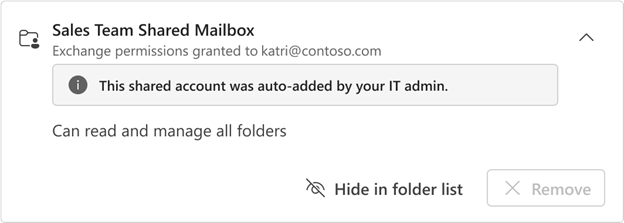
Microsoft’s new Outlook example shows an automatically added shared mailbox with permission to read and manage its folders. That access does not establish Send As or Send on Behalf permission. Test reading, the intended From identity and the reply path separately.[7] View full-size image
Review mailbox access as separate questions: who can read it, who can send from it, where its mail is forwarded, and what survives a departure. A shared mailbox appearing in Outlook does not prove all those settings are right. Start with a business owner and named authorized delegates, then verify the actual read, send and reply tasks.
Use an approved review account and preserve the existing configuration before changing access. Include shared finance or reception mailboxes, executive delegates, temporary cover, outside providers and former employees. Record the purpose and end date of every exception.
Distinguish reading from sending permissions
In the Exchange admin center, open Recipients > Mailboxes, select the mailbox and inspect its delegation settings. Full Access allows mailbox access but does not grant sending. Send As and Send on behalf are separate sending permissions with different recipient-visible identities.[1]
| Permission | What the delegate can do | What still needs a separate decision |
|---|---|---|
| Full Access / read and manage | Open and manage mailbox contents. | Sending as the mailbox or on its behalf. |
| Send As | Send with the mailbox identity shown as the sender. | Reading its contents. |
| Send on behalf | Send with delegate-on-behalf identity. | Reading access and whether that identity suits the business process. |
Test using the delegate’s own account. Open a sample item, send a labeled test with the intended From identity, inspect the recipient’s result and verify where replies arrive. Do not grant a broader right simply because one client has not yet displayed the mailbox.
Keep shared mailboxes separate from shared passwords
Microsoft says a shared mailbox account is not intended for direct sign-in and its sign-in should remain blocked. Delegates use their own licensed access rather than a shared mailbox password.[2]
Name a responsible mailbox owner, current members and a backup for absences. Review membership and sending permissions independently when a person changes role. A renamed mailbox or a password change is not an access review.
Shared mailboxes can hold up to 50 GB without their own assigned license, but larger storage and some archive, hold or advanced-feature scenarios require the appropriate license. Check those requirements before removing a license during a handover.[2]
In Microsoft 365 Teams & groups > Shared mailboxes, review the chosen mailbox’s sent-item settings. By default, shared-mailbox replies are saved in the sender’s Sent Items; configure the intended shared visibility and test it with the actual workflow.[3]
Review forwarding and Inbox rules as delivery paths
Inspect administrator mailbox forwarding and user-created rules separately. Microsoft’s forwarding controls distinguish these paths, and outbound policies can block automatic forwarding to external recipients. Do not infer the result from the existence of a forwarding address alone.[4]
For every destination, record the owner, reason, internal/external status, whether a mailbox copy remains, approval and expiry. Look for former providers, personal accounts, old group addresses and loops. If a route is unfamiliar, investigate its origin and security context before treating it as an ordinary housekeeping item.
The Automatic – System-controlled external-forwarding setting can behave differently across organizations according to current Microsoft guidance. Review the effective controls and deliberate On/Off design; an allow at one layer does not override every block elsewhere.[4]
After an approved change, send a controlled message and inspect the mailbox and intended destination. Check that replies and automatic responses still behave as required. Do not create a global forwarding exception to solve one employee’s transition.
Plan the mailbox handover before removing licenses or accounts
Converting a user mailbox to shared preserves existing email and calendar data, but the associated account remains an anchor for that mailbox. Microsoft advises completing the conversion while the user mailbox is licensed and not deleting the anchor account; rules are preserved and still need review.[5]
- Preserve: establish retention, hold, archive, backup and ownership requirements with the authorized owner.
- Stop unauthorized use: follow the organization’s offboarding process for sign-in, active sessions, credentials and connected applications; conversion alone does not remove the former user’s access.
- Transfer work: assign approved delegates, document ongoing conversations and decide whether forwarding or an automatic reply is necessary.
- Verify: test read/send/reply behavior, sent-item visibility, remaining rules and the business’s recovery requirements.
- Then review licensing: confirm actual size and required features before any license removal.
Revoke the departing person’s access promptly at the approved departure time. Preservation decisions govern destructive deletion and license changes; they should not delay access revocation. Microsoft’s broader former-employee process covers access revocation and data continuity beyond Exchange.[6] Follow that process alongside the mailbox-specific work; one successful shared-mailbox conversion does not retire access to Teams, files, mobile sessions or other applications.
Example: a handover that preserves the mailbox but closes the leak
Consider a fictional finance employee who leaves while invoice discussions must continue. The company approves a shared-mailbox conversion and gives a named replacement the required read and sending rights. The review also finds an old forwarding rule to an external bookkeeper. Conversion preserved that rule, so merely checking the new mailbox type would have missed the continuing data path.
The owner decides whether the forwarding remains justified, the administrator applies the approved narrow change, and the team tests a new invoice conversation and reply. It also checks sent-item visibility and the departed employee’s identity/session closure. The result is continuity with a documented access boundary, not just a different mailbox icon.
Use the Microsoft 365 employee lifecycle guide for the surrounding identity handover, and Microsoft 365 backup design for recoverability. Trace a failed handover message with the Exchange delivery investigation guide; use Outlook diagnosis for a remaining client-only symptom.
For an access review with ALLMSP software support, bring the mailbox owner, approved delegates, forwarding destinations, retention requirements and one example of the failed or risky task.
Frequently asked questions
Does Full Access let a delegate send as the mailbox?
No. Reading/managing the mailbox and sending are separate permissions. Grant only the approved sending right and test the intended From identity.
[1]What is the difference between Send As and Send on behalf?
Send As presents the mailbox as sender. Send on behalf identifies the delegate acting for the mailbox. Neither alone grants permission to read the mailbox.
[1]Should employees sign in directly with a shared mailbox password?
No. Microsoft says shared-mailbox sign-in should remain blocked. Authorized delegates use their own accounts.
[2]Is every shared mailbox free of licensing requirements?
No. The unlicensed mailbox storage allowance is 50 GB; larger storage and certain hold, archive or advanced-feature needs require appropriate licensing.
[2]Why cannot colleagues see a shared mailbox reply in its Sent Items?
By default, the sent copy is saved in the person’s Sent Items. Review the shared-mailbox sent-item settings and test the required shared visibility.
[3]Is mailbox forwarding the same as an Inbox forwarding rule?
No. Inspect both the administrator forwarding configuration and user rules, then review the effective external-forwarding controls.
[4]Does Automatic external forwarding have one universal tenant behavior?
Do not assume that. Microsoft documents differing System-controlled behavior across organizations. Inspect the effective policy and supported explicit design.
[4]Does converting a departing user’s mailbox automatically remove all access?
Can I delete the user account after converting its mailbox to shared?
Do not delete the account that anchors the shared mailbox. Follow Microsoft’s conversion and offboarding guidance and confirm data and licensing requirements first.
[5]What should a mailbox access review prove?
The approved people can perform the intended read, send and reply tasks; unintended access and forwarding are addressed; retained records and recovery requirements remain usable.
Sources
- Microsoft Learn: Manage recipient permissions ↩
- Microsoft Learn: About shared mailboxes ↩
- Microsoft Learn: Shared mailbox settings ↩
- Microsoft Learn: Automatic external forwarding controls ↩
- Microsoft Learn: Convert a user mailbox to shared ↩
- Microsoft Learn: Remove a former employee ↩
- Microsoft: View, hide, or remove shared mailboxes or shared folders in Outlook ↩


