
A QuickBooks Online bank feed does not become accurate merely because it is connected. Downloaded items arrive for review, existing records may already represent the same cash movement, suggested matches can be wrong, and a reconciliation can contain an incorrect opening, beginning, or ending balance. A rushed fix,adding every download, deleting anything that looks duplicated, or posting an unexplained adjustment,can make one screen look better while damaging income, expense, receivables, payables, transfers, or prior-period evidence.
Treat recovery as a state-tracing exercise. Separate the financial institution’s statement from the downloaded feed, the Pending or For review queue from the books, an existing QuickBooks transaction from a suggested match, and the account register from the reconciliation report. Preserve which transaction was entered, matched, categorized, excluded, reconciled, edited, or deleted. The correct action depends on the economic event and its accounting history, not simply on a similar date and amount.
Use this playbook with ALLMSP’s [QuickBooks Online support library](https://www.allmsp.com/category/software-support/software-support-quickbooks-online/), [CPA and Financial Firms resources](https://www.allmsp.com/category/cpa-and-financial-firms/), and [Software Support guidance](https://www.allmsp.com/category/software-support/). The objective is a zero reconciliation difference supported by statement evidence, correct records, reviewable changes, and accountant-approved treatment,not a cosmetic balance.
ALLMSP handles QuickBooks Online backup and recovery validation to teams near Lawrenceville and Suwanee, elsewhere in Gwinnett County and Metro Atlanta, and throughout Georgia, with planning, configuration, testing, and support completed by the same in-house team.
Key decisions at a glance
- Preserve statements, bank-feed state, registers, reconciliation reports, audit history, connection status, and the current difference before changing transactions.
- Match a download to an existing QuickBooks Online record when it represents the same economic event, categorize only when the download should create a new record.
- Exclude or delete only after evidence proves a true duplicate or error, and use Undo or accountant-guided correction when the item has already affected the books or a reconciliation.
- Diagnose opening, beginning, and ending balances separately, protect closed or previously reconciled periods, and escalate uncertain adjustments to the accountant.
Freeze the Evidence and Classify the Failure Before Editing

Capture a recovery snapshot before changing the feed or register. Preserve the masked account, connection status, last successful update, download range, Pending or For review count, Posted or Categorized items, Excluded items, account register, reconciliation screen, opening or beginning balance warning, ending statement date and balance, current difference, prior reconciliation reports, lock date, audit events, browser or connector errors, and recent import history. Store statements and detailed evidence in the approved repository rather than a general ticket.
Classify the symptom. A connection problem prevents or delays downloads. A review problem leaves items pending or posts them to the wrong account. A matching problem links the download to the wrong existing record or fails to find the right one. A duplication problem creates two accounting records for one event. A reconciliation problem can stem from opening, beginning, ending, missing, duplicate, uncleared, combined, or prior-period activity. A reporting problem may reflect account or date selection rather than the feed itself.
Establish the authoritative boundary for the affected statement. Obtain the exact bank or credit-card statement, identify its opening and ending dates and balances, and confirm which real-world account maps to which QuickBooks Online register. List outstanding checks, deposits in transit, combined deposits, transfers, fees, refunds, and late-posted items. If the account was previously reconciled, preserve the reconciliation report and lock-date context. Do not disconnect the bank, alter the opening balance, or delete transactions until this baseline is independently reviewed.
- Redact names, full account numbers, transaction identifiers, payroll details, tax data, and credentials from screenshots and tickets.
- Record expected state, observed state, affected date range, first known occurrence, owner, and business impact.
- Separate a feed-download failure from a bookkeeping or reconciliation difference before choosing a remedy.
- Preserve the prior reconciliation report and audit evidence before touching any item marked reconciled.
- Use a safe copy, protected export, or documented evidence set when broad investigation is required.
Review, Match, Categorize, Exclude, or Undo With Evidence
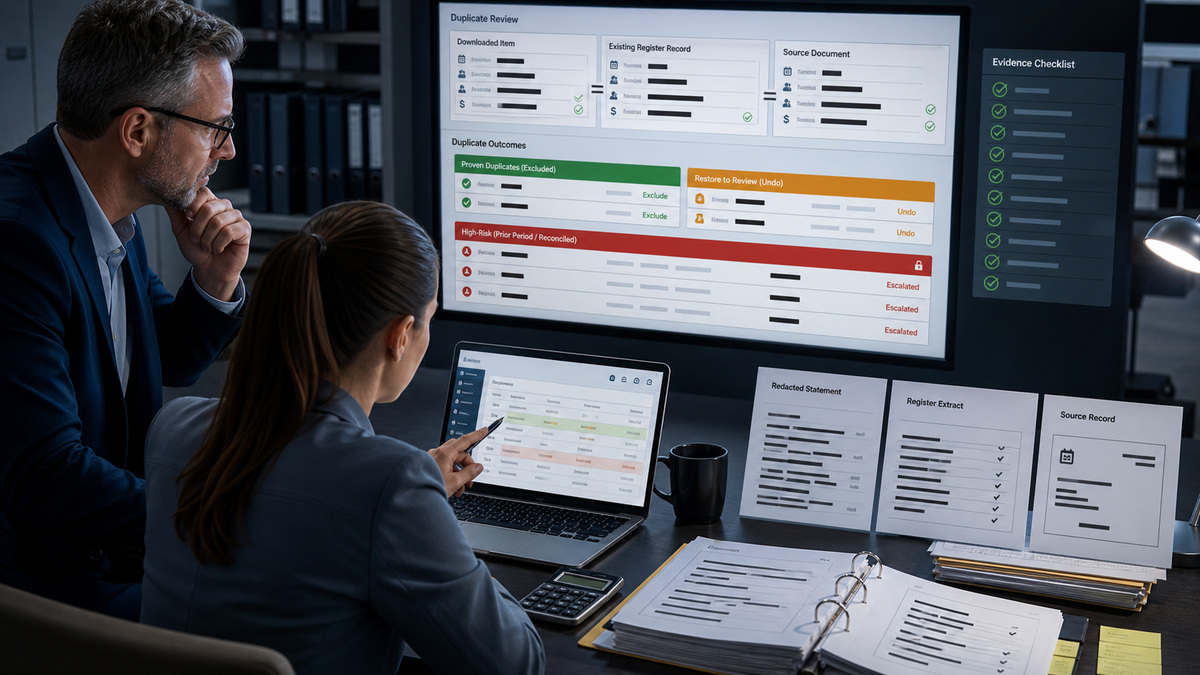
Current Intuit guidance explains that downloaded bank transactions appear for review and do not affect the books until they are matched or categorized. Match when an existing QuickBooks Online record already represents the event. Categorize when the download should create a new transaction. For a bill payment, invoice receipt, check, transfer, payroll item, card payment, refund, or deposit, inspect the source document, counterparty, date, amount, account, and related records before accepting a suggestion. A plausible candidate is not proof.
Use duplicate handling narrowly. Current Intuit guidance notes that duplicates can occur after manual upload and automatic update, and allows a proven duplicate in review to be excluded. Excluded items do not enter the registers or financial reports and can be restored with Undo. Another Intuit guide warns that a personal expense generally should not be excluded merely to keep it off the profit and loss, it may need appropriate equity treatment so the bank register still reconciles. Ask the accountant when the accounting treatment is uncertain.
Correct already-reviewed items through the supported state. If a downloaded item was added or matched incorrectly, current guidance provides Undo, unmatch, or move workflows. If it has already been reconciled, Intuit explicitly advises contacting the accountant because unreconciling and correction can materially affect the accounts. Preserve the existing accounting record, match history, reconciliation status, and replacement plan. Never delete and recreate a reconciled item simply to make the feed look clean.
- Match only when the existing record and download represent the same economic event and intended account.
- Categorize a genuinely new item to the accountant-approved account, payee, class, location, project, and tax treatment.
- Use Exclude only after proving the download should not become a new accounting record.
- Use Undo to return an incorrectly reviewed item to review, then document the corrected disposition.
- Escalate changes to reconciled items, customer-paid invoices, payroll, sales tax, loans, and equity treatment.
Reconcile Opening, Beginning, and Ending Balances Separately
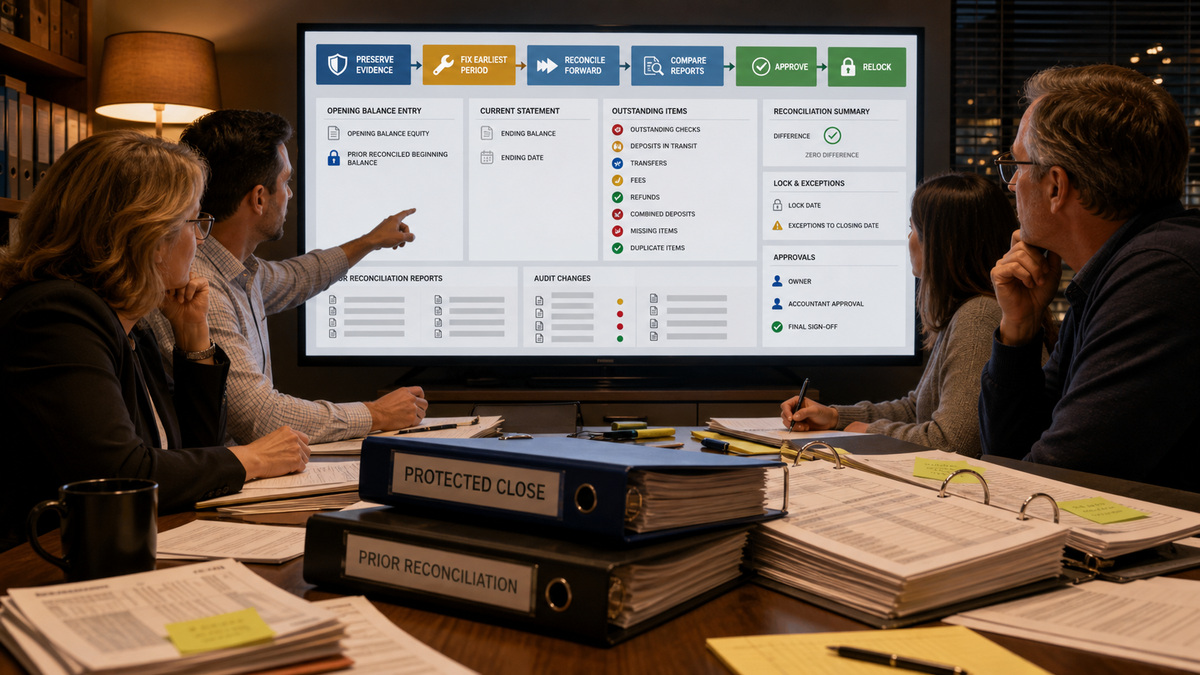
An opening balance is the starting amount when the account begins in QuickBooks Online. A beginning balance in a new reconciliation reflects the prior reconciled state. The ending balance and ending date come from the current statement. Diagnose each separately. Current Intuit guidance for a first reconciliation directs the reviewer to find the Opening Balance Equity entry, compare its date and amount with the real statement, and confirm that no other transaction is incorrectly marked reconciled at that starting point.
For a previously reconciled account, begin with the saved reconciliation report and current beginning-balance discrepancy. Trace deleted, edited, unreconciled, or newly inserted prior-period transactions through the register and audit history. Do not overwrite the beginning balance with the current statement’s opening number without understanding the prior change. If older transactions were added before the original starting date, their relationship to the opening balance must be reconciled or the same activity can be represented twice.
At the current statement end, verify the entered ending balance and date, then clear only the transactions on the statement. Current Intuit guidance lists missing or duplicate transactions, uncleared activity, incorrect ending information, and combined bank deposits as common causes. Narrow the difference by matching known-correct items, reviewing missing records and extra QuickBooks records, checking combined deposits, fees, transfers, and timing. Finish only when the difference is zero for the right reasons and preserve the resulting reconciliation report.
- Compare the opening-balance entry with the bank balance on the same date for a first reconciliation.
- Use prior reconciliation reports and audit history to explain a changed beginning balance.
- Enter the ending balance and ending date directly from the exact statement being reconciled.
- Trace combined deposits, outstanding checks, deposits in transit, transfers, fees, refunds, and late posting explicitly.
- Never use an unexplained adjustment merely to reach zero, obtain accountant approval and evidence.
Recover Safely, Protect Prior Periods, and Prevent Recurrence
Use a controlled recovery sequence: freeze risky changes, preserve evidence, confirm the account mapping and statement boundary, fix connection errors, review pending downloads, correct only proven matches or categorizations, restore or exclude items with evidence, reconcile the earliest affected period forward, compare reports, obtain independent approval, and reapply an appropriate lock date. Re-export or re-enter only the missing item, broad reconnects, bulk categorization, or mass deletions can multiply the problem.
Be especially cautious with disconnecting. Current Intuit guidance says disconnecting stops new downloads but leaves existing accounting data unchanged. It also warns not to disconnect while a bank-connection error remains because reconnection might download duplicates, and notes that uncategorized items can disappear from the pending view after disconnection. Capture and resolve the queue first. If older transactions cannot redownload, use an approved manual-import method with a documented date boundary and duplicate review.
After recovery, monitor feed freshness, pending age, match acceptance, manual categorizations, exclusions, duplicate rate, reconciliation differences, prior-period changes, and lock-date exceptions. Coordinate broader protections through ALLMSP’s [Cybersecurity resources](https://www.allmsp.com/category/cybersecurity/) and [contact ALLMSP](https://www.allmsp.com/contact-us/) when bank access, browser security, administrator ownership, integration behavior, or evidence preservation complicates the response. Escalate accounting uncertainty to the accountant rather than turning a technical symptom into an unsupported journal entry.
- Repair from the earliest affected statement forward so later beginning balances inherit a verified prior close.
- Require peer review for exclusions, deletions, unreconciliation, opening-balance edits, and prior-period adjustments.
- Compare bank, register, reconciliation, balance-sheet, profit-and-loss, receivable, and payable effects after correction.
- Lock reviewed periods and monitor the Exceptions to Closing Date report for later changes.
- Document the root cause, corrected records, evidence, approvals, preventive control, owner, and validation date.
Official product documentation and ALLMSP resources
- Intuit: Categorize online bank transactions in QuickBooks Online
- Intuit: Match transactions in QuickBooks Online
- Intuit: Exclude duplicate transactions in QuickBooks Online
- Intuit: Unmatch or move downloaded bank transactions
- Intuit: Reconcile an account in QuickBooks Online
- Intuit: Learn the reconcile workflow in QuickBooks Online
- Intuit: Fix first-reconciliation issues in QuickBooks Online
- Intuit: Fix issues at the end of a reconciliation
- Intuit: Disconnect accounts connected to online banking
- Intuit: Use the audit log in QuickBooks Online
- Intuit: Lock your books in QuickBooks Online
- ALLMSP: QuickBooks Online Software Support
- ALLMSP: CPA and Financial Firms
- ALLMSP: Software Support
- ALLMSP: Cybersecurity
- ALLMSP: Contact Us
Frequently Asked Questions
Do downloaded bank transactions immediately affect the QuickBooks Online books?
Current Intuit guidance says downloaded items appear for review and do not affect the books until they are matched or categorized. That separation is central to recovery. Preserve the queue, determine whether an existing record already represents each event, and approve the accounting disposition before posting or excluding it.
When should a downloaded transaction be matched instead of categorized?
Match when an existing QuickBooks Online transaction represents the same real-world event, such as a payment, bill payment, check, transfer, receipt, refund, or deposit. Verify the account, date, amount, counterparty, and related document. Categorize only when the download should create a genuinely new accounting record.
When is it safe to exclude a duplicate bank transaction?
Exclude only after evidence proves the downloaded item duplicates an existing accounting record or otherwise should not enter the books. Confirm the statement, register, source document, and match history. An excluded item can be restored with Undo. If the treatment is uncertain or the item is reconciled, consult the accountant first.
Should a personal transaction be excluded from a business bank feed?
Not automatically. Intuit guidance notes that excluding a personal transaction can make the QuickBooks register fail to match the bank statement. It may need to be recorded to an accountant-approved equity account such as owner’s draw. Ask the accountant for the correct treatment rather than hiding the cash movement from reconciliation.
What is the difference between opening, beginning, and ending balance?
The opening balance starts the account in QuickBooks Online. The beginning balance for a reconciliation carries the prior reconciled state. The ending balance and date come from the current bank or credit-card statement. Diagnose each against its own evidence, replacing one with another can conceal a prior-period problem.
How should a first QuickBooks Online reconciliation problem be investigated?
Find the Opening Balance Equity entry in the account register, compare its date and amount with the real statement, and confirm that no other transaction is incorrectly marked reconciled at the starting point. Then enter the current statement ending information and clear only matching activity. Preserve evidence for every correction.
What if the beginning balance changed after a prior reconciliation?
Open the saved prior reconciliation report and trace deleted, edited, unreconciled, or newly inserted historical transactions through the register and audit log. Do not overwrite the beginning balance to match the current statement. Restore the earliest affected period with accountant guidance, then reconcile forward so later balances inherit a verified close.
Should the bank feed be disconnected when transactions stop downloading?
Not as the first response. Current Intuit guidance warns against disconnecting while a bank-connection error remains because a reconnect may download duplicates. Capture pending items and evidence, verify bank and browser status, resolve the connection error, and define the date boundary before any approved disconnect or reconnect.
Can a reconciliation adjustment be used to force the difference to zero?
A documented accountant-approved adjustment can be appropriate in limited circumstances, but it should not be a shortcut. First verify opening, beginning, and ending balances, missing and duplicate transactions, combined deposits, transfers, fees, timing, prior reports, and audit changes. An unexplained adjustment hides the root cause and can distort reports.
When should bank-feed recovery be escalated to the accountant?
Escalate changes to reconciled or locked periods, opening balances, customer-paid invoices, payroll, sales tax, loans, equity, uncertain duplicates, unsupported journal entries, or material differences. The support team can preserve evidence and test product behavior, but the accountant should approve treatment that changes financial statements or prior closes.