





























































































































































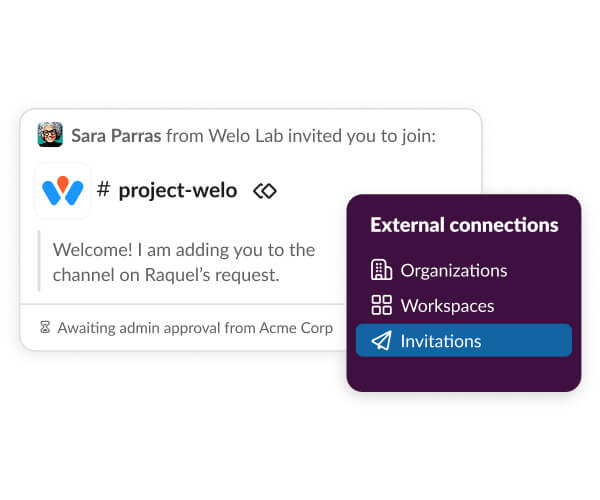
Slack’s published product example shows an external invitation awaiting administrator approval. Check which organization must approve and which workspace should receive the channel. The composite demonstration is not an ALLMSP client invitation or proof of a completed connection.[6] View full-size product image
An external channel can fail at several different steps: sending the invitation, accepting it in the intended workspace, receiving admin approval or reaching the channel with the intended permissions. Identify the current step before sending another invitation. A message that says Awaiting admin approval is useful evidence, not a reason to bypass the approval.[6]
Check the invitation and the receiving identity
Ask the intended recipient which workspace they are using and which identity received the invitation. Review the invitation details and the external organizations involved. Keep those identifiers in a controlled ticket; an email subject or a channel name alone does not prove that the right organization received access.[2]
Guests are not eligible for this Slack Connect channel-acceptance flow. Owners/admins may restrict which eligible members can accept invitations. A recipient can therefore be signed in successfully but still lack the channel-acceptance authority. The person handling the invitation should use the organization’s approved workspace, not create an unmanaged workspace simply to get past the error.[2]
| Current observation | Who or what to check | Evidence needed before moving on |
|---|---|---|
| No option to invite external people | The organization’s invitation permission and channel type | The authorized member can initiate the approved channel connection |
| Invitation reaches an unintended workspace | Recipient identity and intended organization/workspace | The correct receiving workspace is selected and reviewed |
| Invitation accepted; approval still pending | The required approving owner/admin on the relevant side | The legitimate request is approved through its normal queue |
| Channel opens but an action is unavailable | External invitation permission and the person’s channel role | The required task is allowed without an unrelated broad grant |
| A free team cannot follow the expected flow | Actual plan and any Enterprise-sponsored free-team setting | The permitted connection path is confirmed, not assumed from a generic rule |
Do not collapse plan exceptions into a paid-only rule
Ordinary channel acceptance is documented for paid plans, but Slack also documents Enterprise organizations sponsoring channels for free teams. That exception depends on the Enterprise organization’s setting. Free teams joining that way cannot invite additional organizations. Identify the actual arrangement instead of promising that every free workspace can start a connection.[2][5]
Follow approval through the actual queue
Approval can be required when an invitation is sent or accepted, depending on the two organizations’ settings. Ask the responsible administrator to inspect the pending request, intended channel and partner. Do not disable approval globally or invite a second identity to bypass a delayed request.[1][3]
Owners/admins with the relevant permission can review open requests in Manage Slack Connect Invitations. Workspace and Enterprise administration have different settings locations. Capture the actual state, request owner and next action; a sent email or clicked acceptance button is not proof that both organizations completed their parts.[3]
Check the external permission, not only membership
Slack distinguishes a more limited posting invitation from a broader invitation that permits posting, inviting and other actions. The current permission table describes the available actions; the label can only post should not be interpreted as a complete security specification. Choose the approved external collaboration boundary and test the specific task.[4]
The source’s permission notes also distinguish changes that apply only within the organization making them, such as certain channel naming, visibility or retention settings. Do not assume that changing a setting on your side forces the partner’s workspace to mirror it. Ask each side’s owner to verify the controls they actually administer.[4]
Use a small, accountable partner test
This illustrative acceptance case uses an approved test channel and harmless content. It is not a customer story or a claim that another company’s access has been verified.
| Step | Illustrative finding | Bounded action |
|---|---|---|
| Confirm the channel relationship | Both sides identify the intended supplier project and workspace | Keep the request with those owners; do not expose a broader internal channel |
| Review recipient status | The intended member accepted in the approved workspace | Do not resend before checking the remaining approval stage |
| Inspect the request queue | A legitimate admin approval remains outstanding | Have the responsible approver review that exact request |
| Verify the first task | A permitted test message reaches the expected people | Test the required file/workflow separately if it is part of the handover |
| Review permissions and ownership | External authority and ongoing channel owner are recorded | Leave unrelated invitations, apps and broader grants unchanged |
Close with the inviting and receiving organizations, the actual channel, required approvals, intended external permission and test results. Record any separate file-storage permission issue rather than widening channel access to fix it. Keep a named owner for later partner changes and removal.
If messages are present but no alert appears, use the Slack notification tests. For old messages that cannot be found, use the Slack search and retention guide. A separate Teams guest arrangement belongs in the Teams, SharePoint and guest-governance review; Slack Connect membership does not establish access in Microsoft 365.
Frequently asked questions
Is a Slack Connect channel invitation the same as inviting a workspace guest?
Why can I sign in to Slack but still not accept the invitation?
Guests are not eligible for this channel-acceptance flow. Owners/admins may also restrict which eligible members can accept. Confirm your actual member status, receiving workspace and authority with the responsible owner.
[2]Does accepting the email prove the channel is ready?
What does Awaiting admin approval mean?
Can a free Slack workspace join a Slack Connect channel?
There is a documented Enterprise-sponsored exception when the Enterprise organization allows free teams to join its channels. Do not generalize that exception to every free workspace or every invitation type.
[5]Can a sponsored free team invite more organizations?
Slack says free teams joining through the Enterprise-sponsored arrangement cannot send invitations to additional organizations. Ask the approved channel owner to review the intended next connection.
[5]Where does an admin review a pending Slack Connect request?
Slack documents an Open requests queue under Manage Slack Connect Invitations for authorized administrators. The exact settings route differs between workspace and Enterprise administration, so use the instructions for the organization being managed.
[3]Does Can only post fully describe every external permission?
No. Use Slack’s current invitation-permission table and test the required action. Its two invitation types differ in inviting and other capabilities; the short label is not a complete list of permitted behavior.
[4]Will my channel setting change automatically apply in the partner workspace?
Do not assume that. Slack notes that some channel changes apply only within the workspace that makes them. Each organization should verify the controls it owns, including its actual retention behavior.
[4]What proves a Slack Connect invitation issue is closed?
The intended member reaches the approved channel in the correct workspace, required approvals are complete and a harmless test reaches the expected people. Record the external permission and ongoing owner; test separate file permissions independently.
Sources
- Slack: Work with other companies in Slack Connect channels ↩
- Slack: Accept a Slack Connect channel invitation ↩
- Slack: Manage channel approval settings and invitation requests ↩
- Slack: Channel invitation settings and permissions ↩
- Slack: Enterprise-sponsored connections with free teams ↩
- Slack Connect official product page — published invitation example ↩


