

















































































































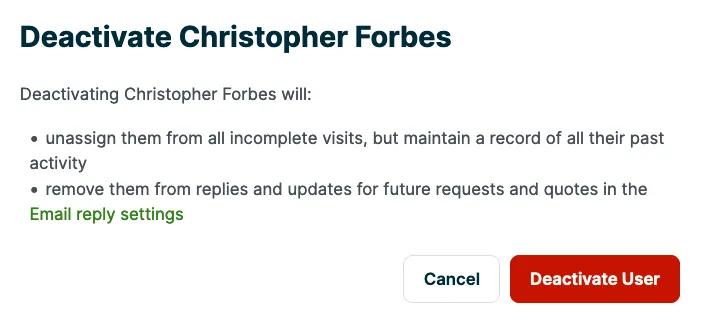
Jobber’s published deactivation confirmation warns that the user will be unassigned from incomplete visits and removed from future request and quote email replies. Record those exceptions for the remaining team; urgent authorized cutoff must not wait for the handoff. The dialog is an example, not evidence that this user was deactivated.[2] View full-size image
Jobber contains more than a daily schedule. Depending on permissions, an account can expose client addresses, property notes, quote pricing, invoices, payments, reports, team activity, and settings that shape every customer interaction. A shared crew login or an overpowered dispatcher account therefore creates both a security risk and an operating problem: nobody can reliably tell who changed the scope, moved the visit, viewed pricing, or connected an outside application.
Jobber’s current preset levels are Field crew, Senior field crew, Crew lead and Manager, with Admin access configured separately. Match actual duties to the saved permissions: a technician may need assigned visits and work notes without prices, while an estimator needs quote access without team administration. Older users can show Custom after preset definitions change even though their permissions have not changed; do not reselect a broader preset just to tidy its label.[2]
Use this guide to approve a named account, test the saved permission set and handle departures without leaving work ownerless. A planned departure should include advance schedule and app preparation. An urgent authorized cutoff must happen at the required time even when that handoff is unfinished; a remaining authorized team then reconciles unassigned calendar work, customer replies and affected integrations.
Key decisions at a glance
- Use named individual Jobber accounts and map responsibilities before choosing presets or custom permissions, shared logins weaken both security and accountability.
- Test the current Field crew, Senior field crew, Crew lead or Manager preset, separate Admin authority and any Custom configuration against the approved duties on desktop and mobile.
- Protect the account owner, payment settings, two-step verification codes, recovery information, and support-access process as separate high-impact controls.
- Prepare calendar and connected-app handoffs before a planned cutoff; urgent authorized deactivation must not wait for them. Reconcile the affected work and apps afterward.
- Prefer deactivation when history must remain available, deletion can remove user history and should be a deliberate, documented decision.
Map Jobber Roles to Named People and Business Duties
Start with a matrix of Jobber duties, not job titles. List who may view the complete schedule, assign visits, access all clients, change request or quote records, see pricing, create invoices, collect or record payments, open reports, manage team members, change settings, and authorize integrations. Include temporary staff, subcontractor coordinators, bookkeepers, and owners who use the system infrequently. For each duty, name the business reason and approving manager.
Compare the duty matrix with the current presets and their actual saved settings. Field crew is the narrow field-work starting point; Senior field crew adds pricing and substantial client, quote, job, invoice and payment capabilities. Crew lead expands schedule and timesheet scope, and Manager adds reporting and available marketing/pipeline tools. None of those labels substitutes for separate Admin authority. Avoid granting Admin simply to make a missing-permission error disappear.
Issue one account per person with a unique email address under a company-managed identity wherever possible. Do not let a crew share one username or forward verification codes. Named accounts improve investigation, offboarding, and training, and they let the company remove one person’s access without disrupting the rest of a truck or department. Record the approved role, manager, start date, device assignment, and review date beside the account.
- Separate owner, Admin, office operations, estimating, dispatch, field work, billing, bookkeeping, and reporting responsibilities.
- Require a documented reason and expiration date for temporary elevated access.
- Use company-controlled email and mobile contact details where practical so recovery does not depend on a former employee.
- Maintain a small named Admin group and a verified path for reaching the account owner.
Build and Test Least Privilege on Real Jobber Scenarios
Jobber exposes configurable permissions across areas that include schedules, time, notes and files, pricing, job costing, text messaging, clients, requests, quotes, jobs, invoices, payments, and reports. Some permissions depend on others. Change one control at a time, save the configuration, and test it as the affected user. An administrator’s own screen is poor proof because elevated access can hide restrictions that the technician will encounter in the field.
Create a non-production scenario set for each role. A Field crew test user might open an assigned visit, read approved instructions, add an internal note or required photo, track time if used, and complete the visit without browsing unrelated clients. A dispatcher may need to see teams, move visits, and contact customers but should be tested for financial and administrative boundaries. An estimator should be able to prepare and revise quotes without inheriting the ability to manage every user or integration.
Test confidentiality as well as task completion. Confirm whether users can see prices, job costing, internal notes, attachments, invoice status, payment details, or broad client history. Check both desktop and the Jobber app, and include notifications and exported or downloaded information. If a custom role becomes difficult to explain, return to the duty matrix and simplify, a permission set nobody can audit is not a sustainable control.
- Capture expected allow and deny results for each tested action and retain the date, user role, device, and tester.
- Verify that customer-visible notes and messages are separated from private office and technician context.
- Retest permissions after plan changes, major feature releases, role redesigns, or changes to connected applications.
- Review Admin and custom-role membership at least quarterly and after every personnel or ownership change.
Protect Verification, Ownership, Payments, and Support Access
Enable and maintain two-step verification using contact information controlled by the intended person. Jobber requires it for account owners using Jobber Payments and can prompt when an unrecognized device signs in or sensitive payment settings are changed. A verification code is an authentication secret: Jobber says its team will never ask for that code, and staff should not relay one to a caller, coworker, or supposed support agent. Lost-phone and number-change procedures should be written before an urgent payout change is needed.[3]
Treat account ownership as a specific governance role. Jobber documents that other users cannot edit the owner’s information and that ownership can be transferred to another Admin. Confirm the current owner, business-controlled email and phone, succession contact, and transfer procedure during access reviews. If an owner departs, completes a sale, or becomes unavailable, waiting until a bank or subscription change is urgent can turn a planned transition into a service interruption.[4]
Separate routine administration from high-impact payment and support actions. Jobber’s payment-settings guidance reserves bank-detail changes for the owner, while administrators may handle other operational settings. Use Jobber’s explicit support-access feature when assistance requires account visibility, record who granted it and why, and remove or let that access expire as appropriate. Never solve a support case by sharing a password or verification code.[5]
For Jobber Payments, only the account owner can update the payout bank account details. Keep that approval and recovery path distinct from other Admin settings.[6]
- Verify the owner’s recovery phone and email with a controlled test, then store the procedure rather than the authentication secret.
- Train users to reject unsolicited verification-code requests even when the caller claims urgency or account suspension.
- Record ownership transfers, payment-setting changes, support-access grants, and Admin changes as high-impact events.
- Review active sessions and company devices after suspected credential exposure or an unexpected verification prompt.
Coordinate Onboarding, Role Changes, and Offboarding
For onboarding, add the named team member with approved permissions, verify sign-in, test assigned work on the intended phone or tablet, and provide a customer-data briefing. Verify any authentication requirements that actually apply; the documented owner/Jobber Payments verification flow is not proof that an Admin can enforce MFA enrollment on every worker. Obtain manager signoff after the task and denial tests, not merely after sending an invitation.
If role testing exposes a scheduling or Client Hub setup issue, use the Jobber configuration guide. If an app disconnects during departure, use the Jobber integration and automation guide to check the accounting or automation result after reconnection.
For a planned departure, capture the incomplete calendar items and reply responsibilities and identify the apps authorized by the user before the cutoff. For an urgent authorized removal, an Admin must deactivate at the required time without waiting for reassignment or reconnection. Jobber documents that deactivation unassigns incomplete calendar items and disconnects apps set up by that user. Preserve the displayed warning and have the dispatcher and integration owner work the resulting exceptions.[7]
The Jobber Zapier guide separately identifies the departing connector-user dependency: deactivating that user disconnects Zapier and requires reconnection. Test the actual destination record after reconnecting; an enabled automation label is not delivery evidence.[8]
Jobber recommends deactivation instead of deletion when records must remain: deletion removes the user’s past activity, while reactivating a deactivated user does not restore the calendar assignments removed by deactivation. After cutoff, reconcile every captured incomplete item, check the actual account status and review email reply recipients. Independently check company email, devices and affected apps; do not assume a Jobber account action proves every external session or authorization has ended.[1]
Keep HR authorization, account timing and company asset return in the same departure record without delaying urgent containment. Name the replacement owner for unresolved requests, quotes, open jobs, invoices and customer follow-ups as well as calendar visits. Retain the approval, execution time, validation result and any exception.
Worked example: contain a departure and recover Jobber operations
Hypothetical example: an authorized urgent cutoff affects a technician with four incomplete visits and a connected app. The dispatcher and integration administrator work in parallel after the cutoff; the example does not promise uninterrupted automation.
| Checkpoint | Required action | Acceptance evidence |
|---|---|---|
| Authorized cutoff now | An Admin deactivates the named user at the authorized time. Do not postpone containment to finish the schedule or app handoff. | Approval, execution time and actual user status are recorded. Preserve the warning details that identify affected work/apps. |
| Four incomplete visits | The dispatcher reconciles the captured visit list against the current calendar and assigns every outstanding visit to a named worker. | Four visits are accounted for, including any already completed or rescheduled item; there is no unexplained gap. Reactivation is not a scheduling repair. |
| Connected app | A remaining authorized user reconnects the affected app through its documented setup and runs one harmless controlled transaction. | Compare the source record with the destination once; investigate missing or duplicate output rather than repeatedly retrying a live transaction. |
| Customer replies | Check the deactivation warning and relevant email reply settings; tell the replacement owner which requests or quotes need attention. | A named person owns the outstanding conversation. Do not assume the former reply recipient remains selected. |
Official product documentation and ALLMSP resources
Frequently Asked Questions
Should Jobber users share a login on the same service truck?
No. Give each person a named account so permissions, activity, recovery, and offboarding can be handled individually. A shared login makes it difficult to identify who changed a record and forces the company to disrupt several people when one worker leaves or a credential is exposed.
Which Jobber permission preset should a field technician use?
Compare the current Field crew preset with the actual job first. Jobber documents own-schedule access, completing work, job notes/photos and timers for that preset, without pricing or other people’s schedules. Senior field crew adds substantially more, including pricing and several record-editing/payment capabilities. Test the saved permissions on the technician’s mobile device; an older user marked Custom may retain an earlier preset’s unchanged permissions.
Who can change Jobber user permissions?
Jobber documents permission management as an Admin responsibility. Keep the Admin population small, require manager approval for changes, test the result as the affected user, and retain an access record so temporary elevation does not become permanent by accident.
Does Jobber support custom permissions?
Yes. Jobber exposes configurable controls across schedule, clients, workflow records, financial areas, reports, notes, files, and related capabilities, with some dependencies between settings. Build from a duty matrix and validate both allowed and denied actions because a custom role can otherwise contain surprising combinations.
When does Jobber use two-step verification?
Jobber’s current article requires two-step verification for account owners using Jobber Payments and describes prompts for unrecognized devices, unusual logins or sensitive payment changes. It says only account owners can set up the documented verification control. Do not report that every worker has an administrator-enforced MFA policy. Verify the owner’s recovery number and the actual workflow, and never share the one-time code.
Will Jobber support ever ask for a two-step verification code?
Jobber’s guidance says its team will never ask for the verification code. A user who receives such a request should stop, avoid approving the sign-in or change, use a known official support route, and notify the company’s security or IT contact.
What is special about the Jobber account owner?
The account owner holds unique authority, and other users cannot edit the owner’s information. Jobber allows ownership to transfer to another Admin, so the company should verify the present owner, business-controlled recovery path, and succession plan before a departure, sale, or emergency.
Should a departing Jobber user be deactivated or deleted?
Use deactivation for routine offboarding when history must remain. Jobber recommends it instead of deletion: deleting a user removes records of past activity, including time entries or completed calendar tasks. Deactivation also unassigns incomplete calendar work, and reactivation does not restore those assignments. Reconcile that work separately, and require a deliberate retention decision before any deletion.
What should happen before a Jobber user is deactivated?
For a planned departure, capture and reassign incomplete calendar work, identify connected apps and prepare customer handoffs before the agreed cutoff. For an urgent authorized removal, deactivate at the required time without waiting for those tasks. Jobber warns that incomplete calendar items become unassigned and the departing connector user’s apps can disconnect. A remaining authorized team must reconcile the schedule, reconnect affected apps and check email reply recipients afterward.
How can ALLMSP support Jobber access governance?
ALLMSP can create the responsibility and permission matrix, test office and mobile roles, align company identity and device controls, document owner and payment safeguards, inventory connected apps, execute joiner-mover-leaver checklists, and retain validation evidence for Georgia contractors.
Sources
- Jobber Help Center: Manage Team Members ↩
- Jobber Help Center: User Permissions ↩
- Jobber Help Center: Two-Step Verification ↩
- Jobber Help Center: Account Ownership ↩
- Jobber Help Center: Granting Jobber Support Access ↩
- Jobber Help Center: Manage Jobber Payments Settings ↩
- Jobber Help Center: App Marketplace ↩
- Jobber Help Center: Jobber and Zapier Integration ↩