





























































































































































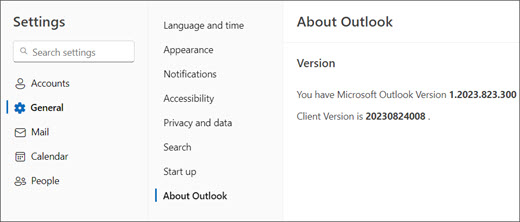
Microsoft’s new Outlook example shows Settings > General > About Outlook. Record the affected client and build before choosing a sign-in or sync procedure. The pictured 2023 build is an example, not a supported-build recommendation.[1] View full-size image
Start an Outlook investigation by identifying the app and account, then reproduce one failed task in that app and, where the provider offers web access, in the same mailbox on the web. That comparison helps separate a client problem from a sign-in, mailbox or mail-flow problem. Reinstalling Outlook first can erase useful clues while leaving the actual cause untouched.
Record the exact error, time and time zone, affected account, operating system, Outlook version/build, network and whether colleagues are affected. Use a uniquely labeled test message or appointment. Keep message contents, credentials and diagnostic exports in the company’s approved support record.
Identify new Outlook, classic Outlook, Mac, web or mobile
Microsoft distinguishes new and classic Outlook for Windows; Mac, browser and mobile clients have their own behavior. Use Microsoft’s version-identification instructions rather than guessing from an old screenshot.[1]
| Client | Useful first branch | Do not assume |
|---|---|---|
| New Outlook for Windows | Identify account type and current feature availability; compare the same mailbox on the web. | A classic Windows profile, COM add-in or repair procedure applies. |
| Classic Outlook for Windows | Check connection state, account/profile context and classic-specific diagnostics. | A local problem proves that Exchange failed to deliver mail. |
| Outlook for Mac | Record the Mac app build, account and failing task; use the Mac-specific procedure. | Windows switches and Control Panel Mail settings exist here. |
| Web or mobile | Confirm the intended organization/account and reproduce the task in that surface. | Every device supports identical offline, add-in or calendar behavior. |
Features change. Microsoft’s current new/classic comparison describes partial PST support in new Outlook and does not support classic COM add-ins there. Check the current capability needed by the workflow instead of repeating “new Outlook has no PST support” or treating a missing COM integration as a broken mailbox.[2]
Separate sign-in failure from a disconnected mail client
Open the organization’s normal webmail route and verify the signed-in account and tenant. A personal Microsoft account and a work account can look similar. If web sign-in also fails, the authorized administrator should inspect account state, service entitlement, identity-policy results and service health before changing a desktop profile. Record the correlation or request reference shown with the failure.
If webmail works and classic Outlook shows Working Offline, Disconnected or Trying to connect, follow the classic connection branch. Its Send/Receive > Work Offline control is a client-specific check, not a fix for every Outlook app.[3]
Compare another approved network only when the support process permits it. A VPN or proxy pattern can explain why one device fails while the same mailbox works elsewhere. Do not disable MFA or weaken an access policy to make a sign-in test succeed.
Follow one missing message before repairing the mailbox
In new Outlook, Microsoft documents View > Sync; classic Outlook uses Send/Receive commands. Supported manual-sync behavior also depends on the account type.[4]
Search the correct mailbox and relevant folders on the web, including Junk, Deleted Items and Archive. Check whether a search scope, view or rule explains the difference. For an unsent message, inspect the Outbox, attachment and exact error before repeatedly clicking Send; repeated attempts can create duplicates when connectivity returns.
| Result | Next investigation |
|---|---|
| The message exists on the web but not in one client | Client view, synchronization, account selection or local state. |
| The message is absent on the web as well | Mailbox rules, forwarding, quarantine or Exchange transport evidence. |
| The sender received a rejection | Preserve the full nondelivery report; diagnose its status code and generating system. |
| Only one third-party add-in lacks the item | Inspect that connector’s scope, supported client and result inside the destination application. |
Use the Exchange Online missing-mail trace guide when the question becomes whether the service received, rejected or delivered the message. For case-management connectors, use the existing Clio integration playbook or MyCase integration guide rather than reconnecting the whole mailbox.
Diagnose the calendar item, not just the calendar screen
For a missing, duplicated or incorrect meeting, record the organizer, attendees, calendar owner, subject, occurrence date and time zone. Establish whether the issue affects one occurrence or an entire recurring series, then compare that same item on the web and in the affected client.
A meeting invitation, a personal calendar item, a shared calendar and an external application’s synchronized calendar are different paths. Check which calendar received the item and whether the user has the intended permissions. Do not recreate or cancel an entire series until the organizer and scope are understood; doing so can create a second scheduling problem.
Example: a fictional employee sees a meeting in the mailbox’s web calendar but not in a case-management calendar. Mailbox delivery has not been disproved. The next check is the connector’s selected calendar and participation rules, followed by a controlled event test. A missing invitation in every mailbox surface instead calls for mail and transport investigation.
Use the matching diagnostic tool and preserve local data
Microsoft’s Get Help troubleshooters for classic Outlook include authentication, connectivity, profile and calendar checks. They are explicitly not applicable to new Outlook for Windows.[5] Choose the troubleshooter that matches the reproduced symptom and review its findings before making further changes.
Before removing an account, rebuilding a profile or repairing a data file, identify any local-only data, archives, unsent items and business add-ins. Confirm the backup and recovery method. A browser comparison does not establish that every local item already exists in Exchange. Keep a supported route back if the proposed change affects those records.
Close the ticket by repeating the original task under comparable conditions. Confirm the message or calendar result at its destination, then inspect any related workflow affected by the fix. Save the cause, correction, result and remaining limitation so the next support case can begin with evidence.
For a broader identity or service problem, continue with Microsoft 365 troubleshooting across services. For shared-mailbox rights, use the Exchange delegation and shared-mailbox review. When requesting ALLMSP software support, provide the client/build, failing task, timestamp, web comparison and error reference.
Frequently asked questions
What is the first useful Outlook troubleshooting test?
Identify the actual client and account, reproduce one failed task, and compare the same mailbox and item on the web where the provider offers web access. Record the result before changing profiles or reinstalling.
Do new and classic Outlook use the same repair instructions?
No. Identify the Windows client first. Mac, web and mobile also need their own applicable instructions.
[1]Does new Outlook support classic COM add-ins?
Microsoft’s current comparison lists COM add-ins as unsupported in new Outlook. Confirm a supported web add-in or different workflow rather than treating the missing COM integration as a mail-delivery fault.
[2]Is it still accurate to say new Outlook cannot use PST files?
No. Microsoft now describes partial PST capability. Check the exact import, export or file task against the current feature comparison before planning a move.
[2]What does Working Offline mean in classic Outlook?
The client is not using its normal online mail connection. Check the classic Send/Receive > Work Offline control and connectivity before diagnosing a server-side delivery failure.
[3]Where is manual Sync in new Outlook?
Microsoft documents View > Sync. Its availability and behavior depend on the client and account type; classic Outlook uses Send/Receive commands.
[4]Does a message in webmail prove every Outlook client is healthy?
No. It helps establish that the item reached the mailbox. A particular client can still have a view, synchronization, account-selection or local-state problem.
What should I collect for a calendar problem?
Record the organizer, calendar owner, attendees, occurrence date, time zone and whether one item or a recurring series is affected. Compare that exact item on the web and in the failing client.
Can classic Outlook Get Help diagnostics fix new Outlook?
Those troubleshooters are for classic Outlook and are not applicable to new Outlook for Windows. Choose the tool for the client you identified.
[5]Should I delete the Outlook profile before collecting evidence?
No. Capture the failure and identify local-only data, archives and unsent items first. Use a supported correction with a recovery plan when profile work is justified.


