





























































































































































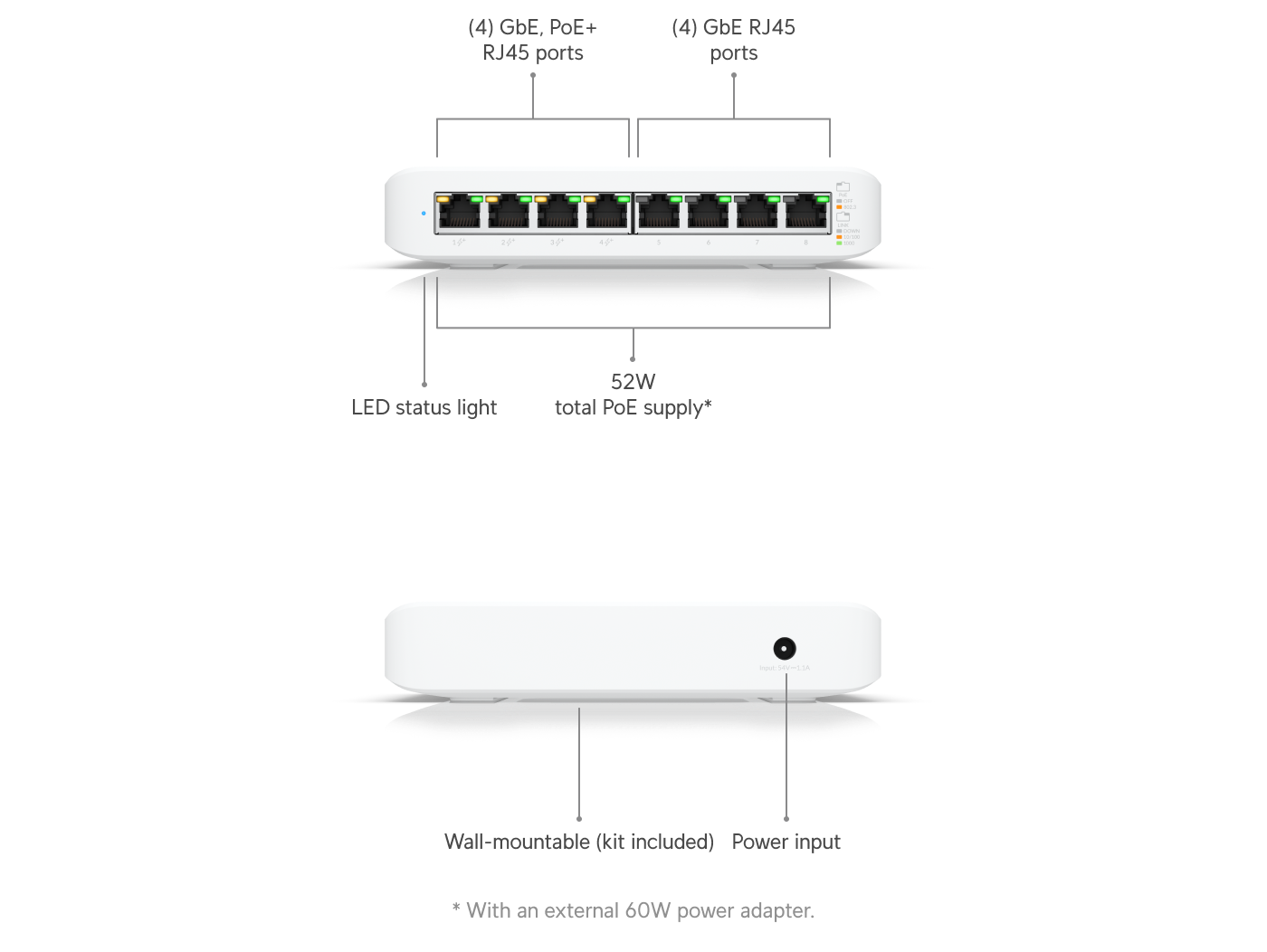
Ubiquiti’s USW-Lite-8-PoE example has eight Ethernet ports; only ports 1–4 provide PoE+. Its 52 W total PoE budget uses the specified external 60 W adapter. Check the actual port and power budget before diagnosing adoption or VLANs.[7] View full-size image
When a UniFi device is offline, first decide what is missing: electrical power, an IP address, communication with the Network host, or service for connected clients. Capture the affected model, MAC address, port, last healthy time and recent change. Those observations determine the next test more reliably than a factory reset.
This guide covers UniFi Network APs and switches. A Protect camera or Access controller uses its own application and diagnostic procedure; do not assume Network adoption ports or tests apply to it.
Classify the symptom before changing the network
| Observation | First useful check | Avoid concluding |
|---|---|---|
| No sign of power | Correct power source, compatible PoE port and cable path. | The controller configuration caused a dead power path. |
| Powered but missing from the host | Actual device address, intended host and management route. | A missing dashboard row proves failed hardware. |
| Adoption pending or repeatedly failing | Correct host/site, reachability and any previous management ownership. | Every adoption fault needs a factory reset. |
| Device online but clients fail | Client address, SSID/port network and upstream VLAN path. | Management connectivity proves the client network works. |
| Several downstream devices fail together | Their common switch, power source, uplink and recent change. | Every endpoint independently failed at the same instant. |
Record the result of each step with a time and the exact device or port. If a change restores service, preserve enough evidence to explain why; changing the cable, switch port and VLAN together leaves an unresolved cause.
Check the scope from a second observation point. A missing site in remote management, an AP absent from one host, and all clients losing connectivity are different reports. Ask a local user whether ordinary work still functions while the management view is unavailable.
Verify power without introducing another fault
Check the device’s LED or screen, cabling and power source. Ubiquiti recommends a known-good cable and another suitable switch port or PoE adapter when there is no power. A switch display may remain dark for several minutes after an update, so use the update context and other indicators before assuming failure.[1]
Match the exact device’s supported PoE mode and required power, the port capability and total switch availability. Passive adapters continuously supply voltage rather than negotiating it; keep their powered output away from ordinary test-laptop Ethernet ports.[2]
Make a controlled substitution. On a permitted maintenance test, use a short known-good patch lead and a verified compatible power source for that model. If that works, investigate the original permanent link and source separately. For a shared switch, check how many dependent devices a port cycle or power change will interrupt.
Keep the physical fault record: closet, panel/port labels, cable used, negotiated link information when available, source power and whether the symptom followed the device or stayed with the path. The cabling diagnostic guide explains how to investigate a suspect link before replacing network equipment.
Find the device address and test the actual host path
Find the device in the intended network’s IP leases or use an appropriate local discovery method. No address, an unexpected subnet or an APIPA address points toward addressing/DHCP investigation. Ubiquiti’s same-cable laptop test checks address assignment, but use a safe data-only connection rather than a passive injector’s powered output.[3]
Confirm which host runs Network and that the operator opened the correct site. A device previously managed elsewhere needs an ownership or migration decision; an inform command should not be used to conceal an unknown prior environment. Ubiquiti distinguishes same-VLAN discovery from routed adoption, where the device needs to reach the intended Network application.[4]
For a restricted or external-host design, check the documented flows at the relevant firewall, including TCP 8080 for device/application communication, UDP 10001 for discovery and UDP 3478 for STUN. Their purposes differ; a successful browser login does not test all of them.[5]
Test the route from the management network involved. Review source, destination, direction and firewall logging rather than opening the entire management server to the internet. Follow the chosen supported remote-adoption design if this is a remote site. Retain the old host information until migration is confirmed.
Inspect native, tagged and management VLANs end to end
Use the actual topology from the AP or switch to the gateway and DHCP service. Ubiquiti’s VLAN troubleshooting guide identifies missing upstream tagged VLANs and conflicts between a device’s Network Override and its directly connected port’s native network as causes of unreachable devices.[6]
For a client-only failure, compare the Wi-Fi network assignment with every upstream port. For a management failure, follow the device’s own address and management network. Use VLAN Viewer where available to inspect the path, then compare the saved port configuration with the intended design.[6]
In an illustrative two-switch office, an AP remains online while guest clients cannot obtain an address. The AP’s management path works, but the guest VLAN is absent from the closet uplink’s allowed tagged list. The operator verifies that exact omission and the gateway’s guest DHCP service, changes the approved uplink setting, then retests a guest lease and isolation. This example demonstrates a diagnostic branch; it does not establish the cause of a different site’s failure.
Before changing a port that carries your management session, preserve its current values and arrange a recovery path. Avoid broad “allow all” changes that hide which VLAN is required or leave an unintended route in place.
Close the incident with evidence, not just a green icon
Retest the original symptom using the affected user or device role. Confirm stable power, the intended addressing, management visibility and required application traffic. Check a connected client’s task and the intended isolation boundary. A device reconnecting once is useful evidence, but it does not prove a recurring power or uplink problem has stopped.
Save the identified cause, exact configuration or physical change, test results and what remains uncertain. Escalate with model/MAC, port and topology, timestamps, software versions and relevant logs or support information. Remove unnecessary customer content and credentials before sharing evidence.
Connect the fault to deployment and continuing maintenance
If the host, owner or management route is unclear, return to UniFi deployment planning. If failed updates, old backups or a provider handoff caused the incident, use UniFi maintenance and recovery to repair the operating process. When the device is healthy but clients still suffer coverage or roaming problems, the Wi-Fi coverage, capacity and roaming diagnostic guide addresses that separate task.
Bring the evidence record to ALLMSP UniFi support. A record of the actual power source, device address, Network host and VLAN path helps separate a configuration fault from cabling, hardware or upstream service problems.
Frequently asked questions
Does an offline UniFi device always mean the hardware failed?
No. Separate loss of power, address assignment and host communication, then test the actual failed path before replacing hardware.
What should I check first when an AP has no power?
Can I plug my laptop into a passive PoE injector’s powered output?
Do not use that as an ordinary data test. Passive outputs supply voltage continuously; use the data side or an appropriate safe test arrangement.
[2]What does a 169.254 address suggest during a UniFi fault?
It suggests the test device did not obtain its expected address. Investigate the relevant DHCP and network path rather than assuming adoption is the first problem.
[3]Why can I log into Network while a device cannot adopt?
Which port is used for UniFi Network device/application communication?
The official reference lists TCP 8080. Discovery and STUN have separate requirements; use the documented flows for the chosen deployment.
[5]Can a missing tagged VLAN make devices unreachable?
Yes. Trace the required network through every upstream port to the relevant gateway and DHCP service.
[6]Does an online AP prove its guest Wi-Fi is working?
No. Test a guest client’s addressing, permitted traffic and intended isolation separately from AP management.
Should I reset every device when adoption fails?
No. Identify the intended host, previous management and connectivity first. A reset can destroy useful state without repairing the path.
What evidence should I send to support?
Send model/MAC, site and host, power source, switch/port, addressing, topology, software versions, timestamps, recent changes and controlled-test results. Exclude credentials.


