





























































































































































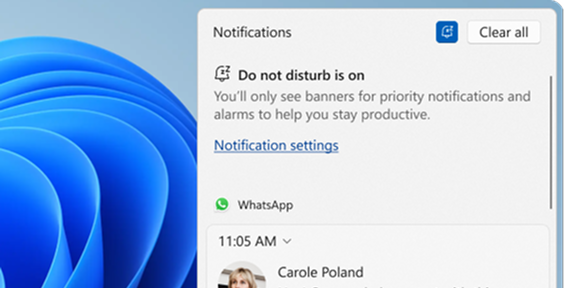
Microsoft’s Windows example shows Do Not Disturb turned on at the operating-system layer. The partial notification belongs to WhatsApp, not Slack. Compare Windows notification settings with Slack’s own schedule and delivery test; this image does not show Slack settings or a successful Slack notification.[4] View full-size product image
First decide what is missing: the message itself, a banner, a sound, a badge or a timely mobile alert. A message visible inside Slack but absent from a desktop banner needs a different check from a message in a workspace you never opened. Use one controlled message to locate the failed boundary before resetting the app.
Record the workspace, conversation, client type and device. Ask an authorized teammate to send a harmless direct message or mention with a distinctive test phrase. Note whether Slack is active on the desktop and whether notifications are paused. Repeat the same small test after each approved change so several simultaneous changes do not hide the cause.[1]
Check Slack’s own rules first
In current Slack notification preferences, inspect How to notify you and What to notify you about, then any conversation exception. A setting for mentions and direct messages does not promise a banner for every ordinary channel post. Notification schedules can pause alerts outside their configured hours.[2]
Thread following, keywords and conversation-specific settings are separate from a general expectation that every unread item should interrupt you. Pick a trigger your settings actually cover for the test. The Activity view, an app badge and an operating-system banner are different observations; do not label all three as successful delivery because one is visible.[1][2]
| Observed result | Next bounded check | Do not infer |
|---|---|---|
| Message appears in Slack; no desktop banner | Slack trigger/schedule, then OS app notification setting | The sender failed to deliver the message |
| Banner appears without sound | Sound preference and the actual output/volume path | The whole notification service is down |
| Desktop works; mobile is later | Mobile trigger/timing and whether desktop activity defers it | That both devices should always alert simultaneously |
| Only one channel is quiet | That conversation’s mute or notification exception | That all workspaces need a reset |
| Expected message is absent inside Slack too | Correct workspace, conversation and access | That changing notification volume will restore the message |
Use the instructions for the actual Windows version
For Windows 11, Microsoft documents Settings > System > Notifications. Review the setting for the Slack app actually in use, including banners, notification-center delivery and sound. A browser session has a browser/site permission boundary as well; changing the installed Slack app’s setting does not configure an unrelated browser session.[3][4]
Inspect Do Not Disturb and its automatic conditions. Windows can send ordinary notifications to the notification center while suppressing banners, with selected priority exceptions. Compare the intended work schedule before making a temporary test change; you do not need to permanently disable the employee’s focus preferences.[4]
Slack’s troubleshooting page still contains Windows 10 labels such as Notifications & actions and Focus Assist. Do not present those as the Windows 11 path. On a managed device, document a setting that cannot be changed and ask the endpoint administrator to inspect the policy; do not bypass the management control.[3][4]
Treat browser and mobile tests as separate paths
A browser-based Slack session needs its own site-notification permission and an open workspace. If the installed app works but the browser does not, check that path rather than reinstalling the desktop app. Record the browser, workspace URL and current permission result without exposing session tokens in a screenshot.[3]
Mobile alert timing can depend on desktop activity and the chosen mobile-notification delay. If the phone remains silent after those settings are checked, Slack’s mobile app offers Troubleshoot Notifications. Save the actual diagnostic outcome for support before choosing the next documented step.[1][3]
Use a repeatable acceptance test
This is an illustrative test plan, not an ALLMSP client result. Use a permitted time window, no confidential message preview and the employee’s real preferred settings.
| Step | Observation to record | Decision |
|---|---|---|
| Confirm the trigger | A harmless direct message appears in the intended workspace | Message delivery and account selection pass; banners remain open |
| Inspect app preferences | Desktop notifications and the relevant trigger are enabled | Continue to the Windows layer without changing unrelated channel rules |
| Inspect Windows | Notification center has the item; an automatic Do Not Disturb condition is active | Test an approved exception or temporary setting, then restore the preference |
| Repeat the same message test | Expected banner appears with the chosen privacy/sound behavior | Record the exact setting and result rather than all notifications “fixed” |
| Check the other requested path | Mobile or browser result is measured separately if part of the request | Do not claim device-wide success from one desktop banner |
If a controlled test still fails, collect the client/OS version, time, workspace, trigger and which layers passed. Keep any local drafts safe before disruptive resets. Use Slack’s documented diagnostic/support route for the unresolved path; avoid mass-clearing unread state, signing out everywhere or weakening device controls as a first experiment.[3]
When the message itself cannot be located, continue with Slack search, access and retention checks. If the missing conversation is external, use the Slack Connect invitation guide.
Frequently asked questions
How do I tell whether Slack delivery or the banner is failing?
Open the correct workspace and conversation, then use a harmless controlled message. If the message appears inside Slack, investigate the trigger and device notification layers. If it is absent there too, confirm identity, conversation and access first.
Will Mentions and direct messages alert me about every channel post?
No. Test a trigger that the selected setting actually covers and review any conversation-specific exception. An ordinary unread channel post and a notification-worthy mention are different events.
[2]Why are Slack notifications paused during part of the day?
Check the Slack notification schedule and current pause state. Compare it with the employee’s intended working hours before changing it; a scheduled pause is not necessarily a fault.
[2]Where are Slack notification controls in Windows 11?
Use Settings > System > Notifications, then inspect the relevant app’s controls. Windows 10 instructions using Notifications & actions or Focus Assist should not be copied as the Windows 11 path.
[4]Can Do Not Disturb hide a banner while keeping the notification?
Yes. Microsoft documents that other notifications can go to the notification center while Do Not Disturb allows only selected priority banners. Compare the center, app setting and automatic condition before changing preferences.
[4]Why do mobile Slack alerts arrive later than desktop alerts?
Mobile timing can depend on desktop activity and the chosen delay. Compare those preferences and run a separate phone test rather than assuming that both devices should interrupt at the same moment.
[1]Does enabling the Slack desktop app fix browser notifications?
No. Slack in a browser has a separate site-permission path and requires the workspace to be open. Record which client was tested instead of treating all desktop use as one application.
[3]What should I do if a Slack banner appears but makes no sound?
Test sound as a separate path: the relevant sound preference, actual output device and volume. A visible banner already establishes a different result from an entirely missing message or notification.
[3]Is there a diagnostic test for missing mobile notifications?
Slack provides Troubleshoot Notifications in its mobile notification settings. Use the actual result and the documented support route after checking the intended trigger and timing.
[3]What should a useful Slack notification ticket contain?
Include the workspace, client and OS versions, exact test time, harmless trigger and separate message/banner/sound/mobile results. Note the setting changed and whether the employee’s intended schedule and privacy preferences were restored.


