





























































































































































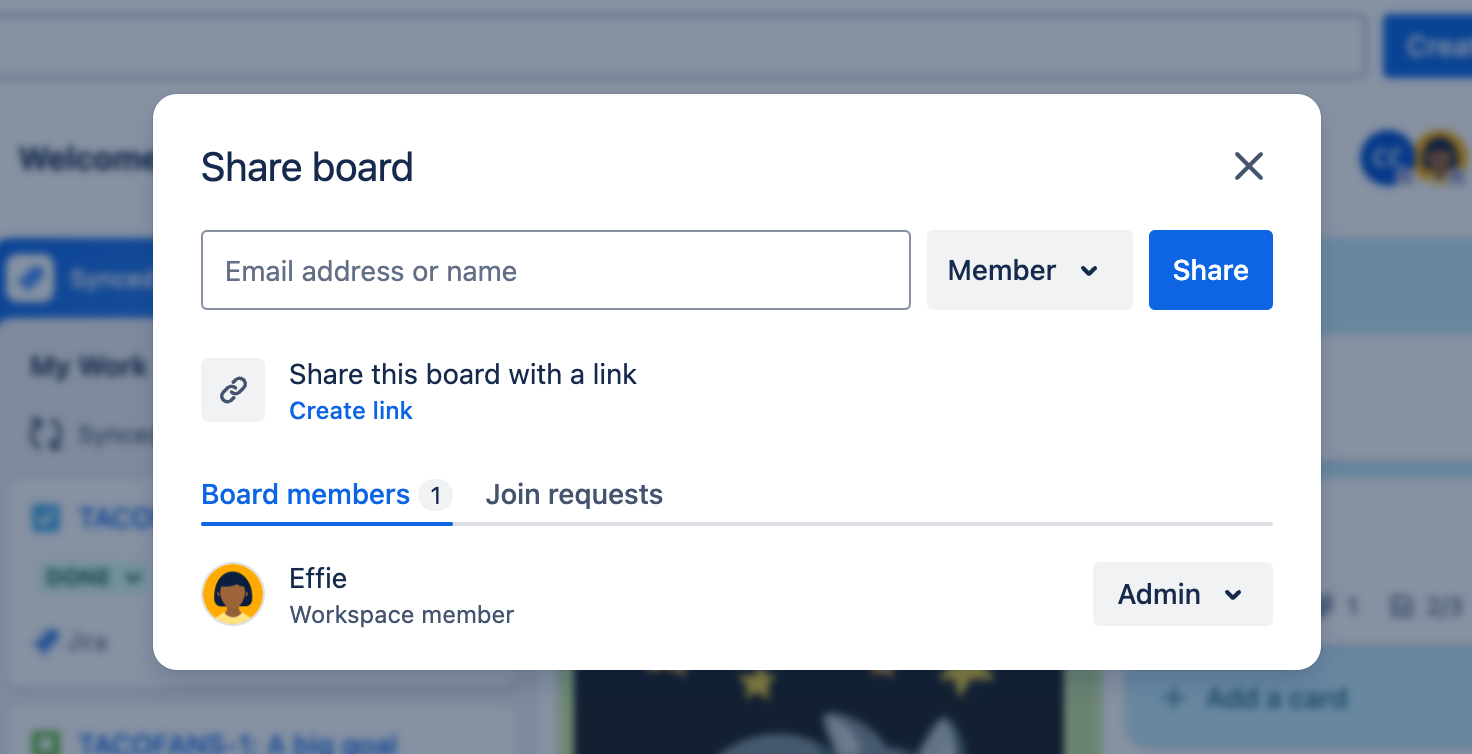
Atlassian’s Share board example separates an invitation’s role from the Board members and Join requests tabs. The blank field is not a completed invitation; verify the intended account, existing membership and approved board audience.[1] View full-size product image
An invitation to a Trello Workspace, a board membership and permission to edit a card answer different questions. Start with the exact board URL and intended account. Do not make a private board public to work around one recipient’s access failure.
Identify which boundary failed
Ask the recipient to confirm their own signed-in account and the board link they opened. Record the exact message and whether the problem is opening the board, joining it, commenting or editing. Have an existing board administrator inspect that specific board; the administrator’s own successful access does not prove that the recipient can use it.
| Observation | Administrator check | Bounded next step |
|---|---|---|
| Invite was received, but board will not open | The invited identity and actual board membership | Resolve that invitation without publishing the board |
| Workspace appears, board does not | Board visibility and membership | Determine whether access to this board is approved |
| Board can be read but not edited | Viewer status, membership and role | Match the permitted action to the required task |
| Guest can see more cards than intended | The whole board audience | Separate confidential work before inviting, not after disclosure |
Confirm board membership and the correct invitation
Use Share to inspect board members and join requests. An invited new account needs email verification. If an invitation was created for a different or unverified identity, let the board administrator resolve the actual invited account rather than repeatedly forwarding links.[1]
Where the person can request to join, the board administrator can review that request and choose the approved role. A request is not evidence that membership was granted. If Share is unavailable, a board permission may limit invitations to administrators.[1]
Treat a Workspace guest as a real board member
A Workspace guest belongs to a board without belonging to its Workspace. By default, guests are normal board members and can change the board. They can see all its cards; there is no per-card privacy boundary that hides selected cards from that board member.[2]
Before inviting a contractor, inspect the board for unrelated customers, internal notes and attachments. A guest-only label is not a confidentiality control. If the audience should see only a handoff, design an appropriately scoped board or approved separate workflow first.
On Standard or Premium, a guest on two or more boards in the same Workspace becomes a billable multi-board guest. Count the intended boards before adding the second membership. On a Free Workspace, guests also count toward collaborator limits.[2]
Distinguish visibility from editing and role
Private boards are limited to board members, with paid-Workspace administrator access also documented. Workspace-visible boards have a broader audience and Workspace editing controls. Public boards are visible to anyone with the link, while editing still requires board membership. Inspect the actual setting rather than treating “the link opens” as proof of the intended role.[3]
An Observer is a read-only board role available with Trello Premium. It is a separate choice from making someone a normal member or guest. Observers can still download attachments and export the board, and may comment or vote when enabled. Check those interactions when planning review-only work; this role is not a no-copy guarantee.[4]
Test the invitation as a controlled handoff
The following is an illustrative acceptance record, not a customer account. A contractor needs to work on a deliberately scoped handoff board. The administrator must confirm both useful access and the audience boundary.
| Test | Expected outcome | What to record |
|---|---|---|
| Recipient opens the approved URL | Correct board under the intended account | Account and actual membership |
| Recipient performs the required action | Agreed role supports that work | Action and permission tested |
| Administrator reviews all visible cards | Only approved handoff material is present | Audience/content review decision |
| Administrator checks Workspace and board count | No accidental wider membership or unexplained paid seat | Guest/member status and relevant board count |
If the plan prevents another collaborator, have the administrator review the legitimate limit and membership requirements. Do not remove an unrelated person or promote the contractor to a broad Workspace role merely to test a theory. Close the case only after the intended account demonstrates the required action.
Choose the next task
If access works but expected cards are absent, use the filter, search and archive checks. If the board and cards work but alerts do not, use the Trello notification checks.
Frequently asked questions
Is a Trello Workspace guest the same as a read-only observer?
Can I hide one card from another member of the same Trello board?
No. Members can see the board’s cards. Place confidential work in an appropriately restricted location before granting access.
[2]Why can someone open a public board but not edit a card?
Public visibility allows viewing. Editing requires board membership with the appropriate role.
[3]Does Workspace membership prove access to every private board?
No. Inspect the board’s visibility and membership; paid-Workspace administrator permissions are a separate case.
[3]How can an administrator review a request to join a board?
Open Share and inspect Join requests, then approve only the intended identity and role. A pending request is not an accepted membership.
[1]Why might the Share menu be unavailable to a normal board member?
The board may limit invitations to administrators. Ask a current board administrator to inspect the setting.
[1]Can every Trello plan assign an Observer?
No. Atlassian documents the Observer role as a Premium feature. Confirm availability and allowed interactions before promising review-only access.
[4]Can adding a guest to a second board affect billing?
Yes. On Standard or Premium, two or more boards in the same Workspace make that person a billable multi-board guest.
[2]Should I make the board public to fix a failed invitation?
Only if public disclosure is independently approved. Resolve the intended identity, membership and role first.
What proves the board access repair is finished?
The intended account opens the correct board and performs the required action, while its audience, role and Workspace membership remain appropriate. Record the actual test.


