





























































































































































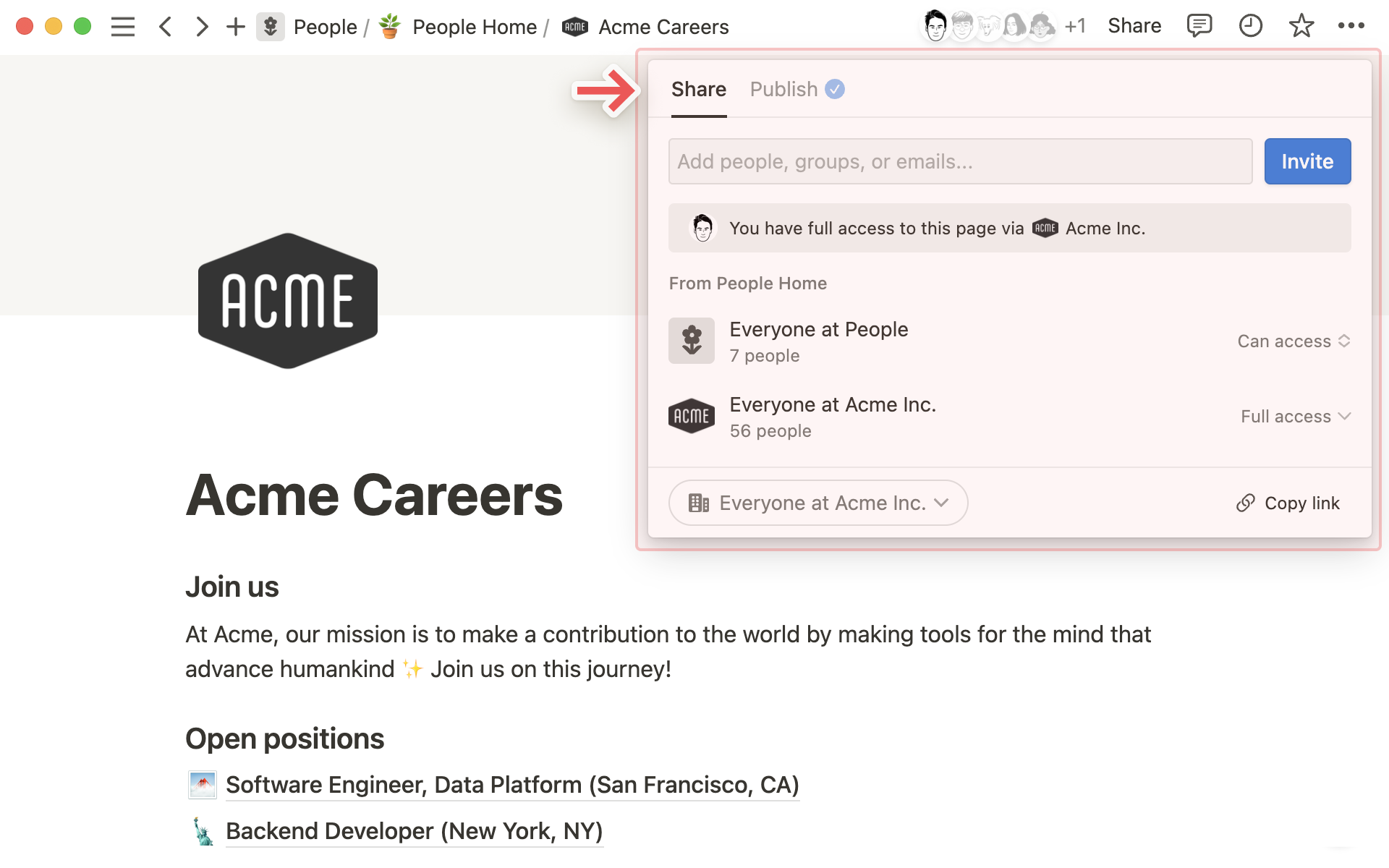
Notion’s published Acme Careers example shows inherited grants, broad Acme Inc. full access and a checked Publish tab. This illustrates access paths, not a recommended private client configuration. Review the intended guest, descendants and both Share and Publish settings.[1] View full-size product image
A client needs one project page, not necessarily a workspace membership or a public website. Before sending its link, agree on the specific material and actions they need. Then check the invitation, inherited grants and public settings as separate boundaries.
Choose the audience before the button
A named invitation differs from General access and Publish. “Anyone on the web with link” permits outside viewing without an account; it is not a private invitation.[1]
| Need | Inspect | Avoid assuming |
|---|---|---|
| Named client reviews one project | Guest invitation and exact page role | A copied URL grants access by itself |
| Coworkers need shared team material | Workspace/teamspace and direct grants | A narrow direct role cancels a broader existing grant |
| Approved material should be public | Publish and General access separately | Stopping one public path closes the other |
| Client needs selected database records | Actual page/database access and linked pages | A filtered view is a confidentiality boundary |
Invite the intended account with the intended role
Guests are invited to individual pages and need a Notion account. Check whether the invite is adding a guest or a member before confirming it. Guest limits, allowed domains and workspace policies can affect that choice; an administrator should resolve a policy restriction rather than bypassing it with a public link.[2]
Full access includes sharing; Can edit differs. Notion applies the broadest effective grant. Check teamspace, workspace and direct grants against the agreed client role.[1]
Use a dedicated handoff page when the existing page mixes client information with internal notes. Put only approved content there. Do not rely on a polite request that the client ignore unrelated pages or database records.
Review subpages and public routes
Subpages inherit permissions. Moving a shared parent into Private does not remove existing subpage grants; inspect sensitive descendants separately.[1]
Publishing a Notion Site can publish its subpages too. Unpublishing a Site can still leave General access set to “Anyone on the web with link.” Review both settings, including the content visible through database views and pages. Public page metadata may identify contributors, so include that in the owner’s publication decision.[3]
Test the handoff rather than the owner’s session
The following is a proposed acceptance check. A client should review a project brief and comment on a harmless test item. Internal staffing notes and other clients’ records are outside scope. Keep a record of the page URLs and the intended role without collecting the client’s credentials.
| Check | Expected result | If it differs |
|---|---|---|
| Client opens the exact approved page | Correct account reaches the brief | Resolve the invitation/account mismatch |
| Client performs the required review action | Agreed comment or edit is available | Inspect the effective role |
| Client tries an agreed internal test page | Unapproved material remains inaccessible | Stop sharing and inspect inherited/broader grants |
| Owner inspects Share and Publish | No unintended public route remains | Close the specific route and retest |
| Owner reviews subpages and database links | Only agreed content is exposed | Move or restrict material deliberately, then recheck |
Use the recipient’s own authorized account for the positive test. A signed-out check on non-sensitive test content can help identify an unintended public route, but it cannot establish every named user’s permissions. If a real confidential page was exposed, follow your organization’s incident process as well as correcting access.
Close the loop when the engagement ends
Record the page owner, review date and person responsible for ending the guest’s access. Workspace owners or membership administrators can manage guests, while page-specific sharing still needs deliberate review. Check what the client actually needs to retain before removing access.[2]
Before handing over imported data, use the CSV reconciliation checks. If the handoff includes calculated project summaries, verify the relations and rollup inputs so the client receives a result you can explain.
Frequently asked questions
Does copying a Notion page link invite a client?
No. Check the page’s sharing settings and the intended account’s actual access; a URL alone does not establish a named invitation.
[1]Does a Notion guest need an account?
Yes. A named guest needs a Notion account to access the invited page.
[2]Why might the invitation add a member instead of a guest?
Plan limits, domain rules and administrator policy can affect the invitation. Confirm the proposed role before sending; do not use public access to bypass a restriction.
[2]Can I use a view-only direct grant to cancel broader access?
No. Notion uses the broadest effective grant. Inspect wider workspace, teamspace and other sharing paths.
[1]Is Can edit the same as Full access?
No. Full access includes the ability to share the page. Choose the role needed for the actual engagement.
[1]Will an invited guest be able to open subpages?
Subpages inherit access by default. Review sensitive descendants and any exceptions before sending the invitation.
[2]Does unpublishing a Notion Site make the page private?
Not necessarily. Check and remove any unintended public General access setting separately.
[3]Does a database filter protect confidential records from a guest?
Do not use a presentation filter as the permission boundary. Verify access to the actual database pages and linked material with the intended account.
[1]Can moving a page into Private clean up all subpage permissions?
No. Existing subpage grants can remain; review them individually.
[1]

