





























































































































































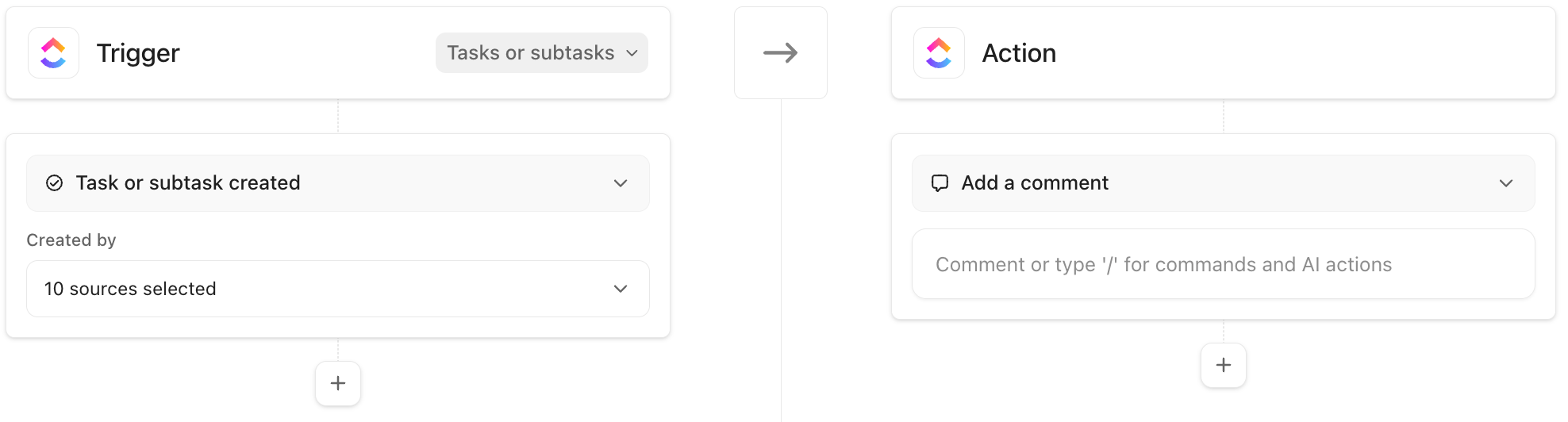
ClickUp’s published builder example separates the creation trigger and selected sources from the Add a comment action. The comment is blank, so this is not evidence of an enabled or working rule. Trace the actual scope, event, conditions and action in your workspace.[1] View full-size product image
When a ClickUp Automation does nothing, changing several rules at once makes the cause harder to find. Trace one task and one event through the rule. First ask whether it was eligible to run; then inspect what the Activity record actually says happened.
Write the rule as one testable sentence
Record the Automation’s location, trigger, optional conditions and actions. Confirm whether it targets tasks, subtasks or both. For creation triggers, inspect Created by: a manual task, import, recurring task, API-created task or template can be a different eligible source.[1]
For example: “When an eligible task in this test List changes to Ready, add this harmless comment.” Keep the test local to an approved location. Do not use an email, destructive move or customer-facing action just to learn whether a trigger fires.
| Layer | Evidence to inspect | Question it answers |
|---|---|---|
| Location | Space/Folder/List where the rule exists | Does this task belong to the rule’s intended scope? |
| Trigger | Exact event and configured task/source choices | Was the observed change the event this rule listens for? |
| Condition | Values when the event happened | Was the task eligible at that moment? |
| Action | Expanded Activity details and actual task result | Did the intended change occur? |
| Availability | ClickApp, role, active rule and usage state | Could the rule run in this workspace now? |
Check availability without guessing the plan
The owner or administrator must enable Automations. Workspace action limits vary by plan; exceeding the limit pauses Automations for that month. Conditions are available on Business and above. Inspect the workspace’s actual usage and permissions instead of assuming every visible control is available to every collaborator.[2]
A trigger is an event, not just a task currently matching a description. Inspect the selected trigger’s own rules and perform one authorized matching change. A task that was already in the target state is not evidence that a new transition occurred.[4]
Use Activity to distinguish absence, waiting and failure
The Activity tab defaults to the current location. Broaden the location/date/status filters as appropriate, open the relevant run and inspect its actions. Pending, Failed, Skipped and Success are distinct outcomes; no row under a narrow filter is not proof that nothing ran.[3]
Capture the Automation name, task ID, event time and exact failure before changing it. The documented failure handling can deactivate a repeatedly failing rule, and some email or Custom Field errors cause immediate deactivation. Resolve the underlying issue before another controlled test.[3]
Test both the intended action and the limit
This is a proposed rule test. Suppose a review handoff should add an internal test comment only when a task enters Ready and its review flag meets the configured condition. Use two harmless test tasks. Keep any downstream rules in mind before changing a shared status.
| Test | Expected result | Check after the event |
|---|---|---|
| Eligible task makes the exact trigger transition | One intended action | Activity identifies the run and the task has the correct result |
| Second task fails the deliberate condition | No unintended action | Inspect eligibility and any Activity outcome without relabeling it a failure |
| Different creation source or task/subtask scope | Only configured scope is eligible | Source and task type match the agreed rule |
| Repeat the approved test once after a fix | Stable result without duplicate downstream work | Record the corrected setting and affected rule owner |
A Success status records action completion; still inspect the actual task field or comment that matters to the workflow. If no run can be found after checking scope and history availability, escalate with the smallest reproducible case rather than repeatedly toggling the whole workspace’s Automations.
Follow the problem to its actual feature
If the event should come from a repeat, check the recurring instance and its creation options. If the goal is to move dates after a prerequisite changes, review dependency rescheduling before adding a second Automation that might move the same work.
Frequently asked questions
What should I record first when a ClickUp Automation does not run?
Record the task ID, rule location, exact trigger event and time, conditions and intended action. This separates an ineligible task from a failed action.
[1]Why can one manually created task trigger a rule but an imported task cannot?
Check the creation-source choices under Created by. Different creation paths can be included or excluded deliberately.
[1]Does a task already in the required status prove a status-change trigger happened?
No. Inspect the trigger definition and the actual transition. A matching current value and a new triggering event are different evidence.
[4]Can every ClickUp plan use Automation Conditions?
No. Conditions require Business or above in the current documentation; check the actual workspace plan and role.
[2]Can monthly usage stop an otherwise correct Automation?
Yes. Exceeding the workspace action limit pauses Automations for that month. Check actual usage before rebuilding the rule.
[2]Why is there no run in the Activity tab?
Does Pending mean that the Automation has failed?
No. Pending means the run is still attempting to complete. Inspect its details before taking an action that could duplicate work.
[3]Why did the Automation become inactive after errors?
ClickUp documents deactivation for repeated identical failures and specific email or Custom Field errors. Inspect the recorded error and correct its cause.
[3]Does Activity Success prove the business handoff is correct?
It proves the recorded action completed. Also inspect the actual task result against the handoff’s intended field, assignee or comment.
[3]

