





























































































































































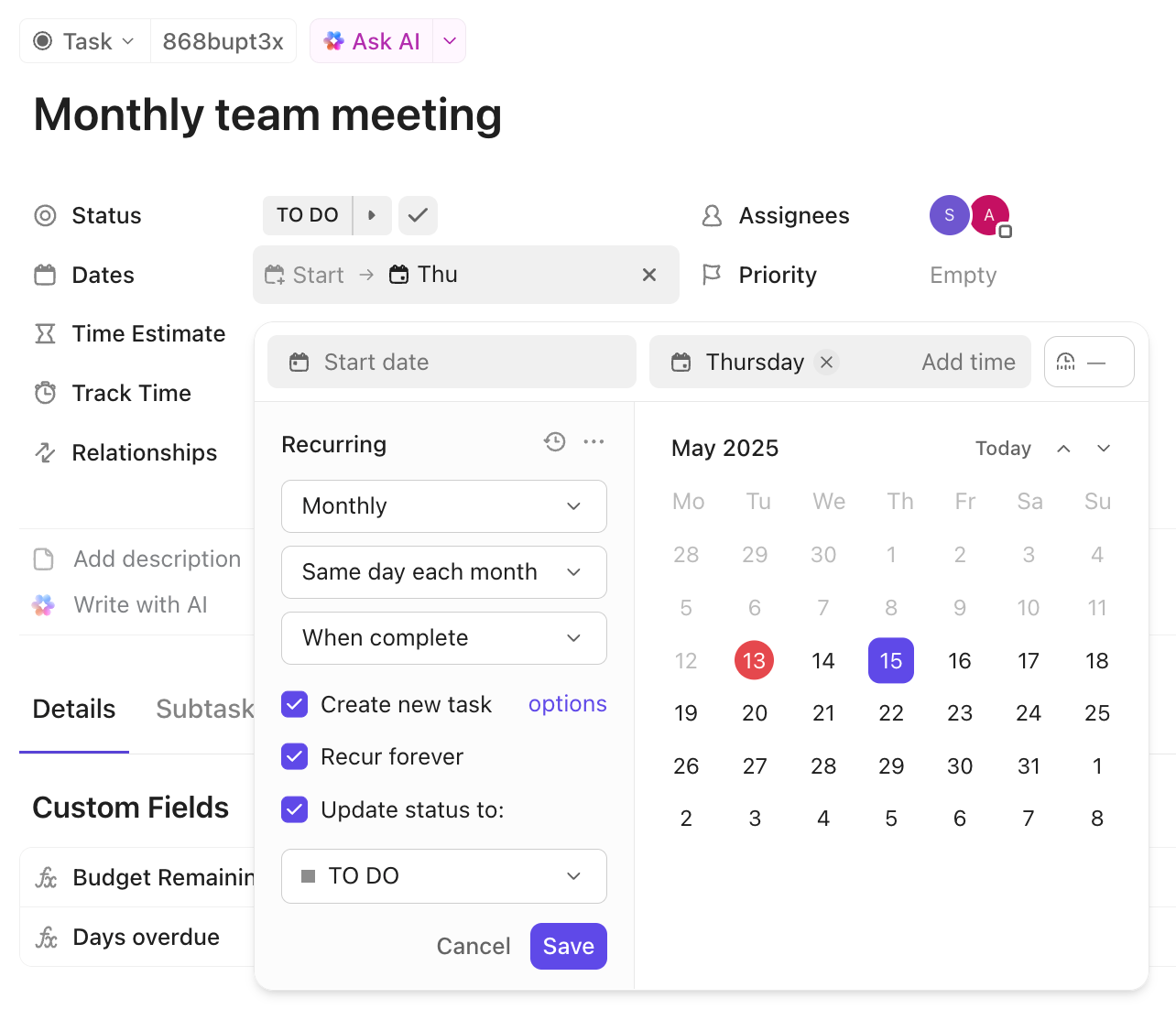
ClickUp’s published May 2025 example shows Monthly, When complete and Create new task options; Save has not been pressed. It demonstrates settings to inspect, not a successful recurrence or a promise that every current setup displays identical controls.[1] View full-size product image
A recurring task can look missing because it has not been created yet, or duplicated because the next instance was created earlier than expected. Do not add a second repeating task until you have identified the current task ID, the next due date and the recurrence settings that produced the result.
Separate the recurring record from the calendar preview
Record the task ID, home List, due date/time, recurrence mode and whether Create new task is selected. With that option enabled, recurrence duplicates the task as a new task; without it, the existing task is reused and its activity is retained.[1]
Recurring Task Overview shows the most recent recurrence of active recurring tasks, with a Last Run column. It displays only the first 100 most recent tasks, so an absent row there is not a complete inventory. Use an appropriate recurring filter and inspect the actual task.[2]
| Observation | Check first | Do not do yet |
|---|---|---|
| No future task ID exists | Whether the calendar item is only a projected recurrence | Create a second recurring schedule |
| New instance appeared before the due date | Completion event and recurrence mode | Delete it solely because it appeared early |
| Same task ID has new dates | Create new task option | Assume a separate instance was lost |
| Task stopped repeating | Location archive state and recurrence limits | Move or delete a large set of subtasks blindly |
Inspect the event and the clock
Recurrence uses the task’s due date. Without an explicit time, the guide specifies 11 pm in the timezone of the person who configured it. Completion and Done/Closed transitions can produce an immediate next instance, including the documented early-completion behavior for On schedule; inspect the actual mode and transition instead of promising that On schedule always waits.[1]
Check the configuring person’s timezone alongside the expected local date. Write an explicit expected instant for a test task. A due date that looks correct to one person does not explain when another person expected the recurrence to occur.
Future recurring tasks shown in Calendar are projections, not tasks that already exist. Showing them is available on Unlimited and above; a calendar preview is therefore a different check from opening a created task ID.[3]
Run one controlled recurrence
This is an illustrative test plan. Use a harmless task in an approved test List and record its initial ID. Choose one recurrence event deliberately; avoid changing a production schedule repeatedly while other people are completing its tasks.
| Checkpoint | Evidence to record | Acceptance decision |
|---|---|---|
| Before the event | Task ID, due timestamp, mode and Create new task option | One known recurrence configuration |
| After the selected event | Current ID and any new task ID | New-versus-reused behavior matches the chosen option |
| Inspect the next instance | Next due date, assignee and selected carried fields | The next unit of work is usable |
| Review surrounding rules | Other recurring records and relevant Automations | No unexplained second source of task creation |
Archived locations do not recur, and tasks with 500 or more total subtasks—including nested, archived and closed subtasks—lose recurring settings. Inspect those conditions before asking an owner to make a bounded correction; preserve work instead of deleting subtasks as a first fix.[1]
Treat template and Automation behavior separately
The recurring-task guide identifies a specific limitation involving template-based recurrences and a Task created trigger that applies a template. The Automation builder separately offers Recurring tasks as a creation source. These are not a universal ban on recurring-task triggers. Check the exact source, trigger and action combination on a test instance.[1][4]
If the schedule is correct but a rule does not run, use the Automation trace. If recurrence creates the next task but dependent dates are wrong, inspect the dependency and scheduling settings.
Frequently asked questions
Does a future recurring item in Calendar mean the task already exists?
No. Future recurrence items represent tasks not yet created. Look for an actual task ID before diagnosing a missing instance.
[3]Why did a task appear immediately when I completed the current one?
Inspect the recurrence mode and completion transition. The documented behavior can create the next instance immediately, even before the next scheduled due date.
[1]Why is the task reusing the same ID instead of creating a new one?
Check Create new task. With it unselected, the current task is reused rather than duplicated as a new task.
[1]What timezone controls a recurrence without an explicit time?
The guide specifies 11 pm in the timezone of the user who configured the recurrence. Record that timezone during diagnosis.
[1]Does an empty Recurring Task Overview prove there are no recurrences?
No. It is a bounded recent overview. Use the recurring filter and inspect the intended task and its current location.
[2]Will an archived List keep producing recurring tasks?
No. Recurring settings in archived locations do not continue producing instances; review the intended active location with its owner.
[1]Can a large number of subtasks stop recurrence?
Yes. At 500 or more total subtasks the documented limit removes recurrence. Count nested, archived and closed subtasks too before planning a correction.
[1]Do new recurring tasks inherit the previous instance’s tracked time?
No. Tracked time is not carried over to the new task.
[1]

