





























































































































































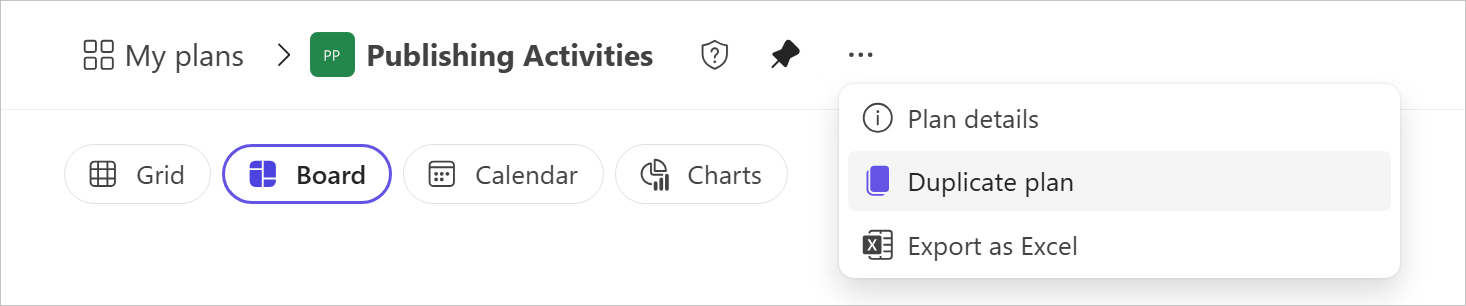
Microsoft’s published cropped menu shows Duplicate plan for the sample Publishing Activities plan. It shows the command, not a completed copy, preserved history or recipient file access. Validate the destination plan and its contents before handing work over.[1] View full-size product image
A copied Planner plan is a starting structure for new work. Treating it as a complete project migration can leave people looking for old conversations, missing files or the wrong assignments. Decide whether you need a whole new plan or only a few tasks before using either command.
Write down the source plan link, intended destination, owner and purpose. Keep the source available during validation. A successful notification that copying finished is only the beginning of the handoff check.
Choose plan duplication or task reuse
For a whole plan, open its menu and choose Duplicate plan. The copy may be personal or shared with a Microsoft 365 group. Roster-based plans are currently excluded; restrictions on creating groups can also prevent copying.
[1]For a Basic plan’s individual tasks, Microsoft documents separate copy and move workflows. Copy preserves the source tasks; moving changes their location. Do not apply that Basic-task procedure to a Premium plan just because the buttons look similar.
[2]Set the right expectations for a whole-plan copy
| Element | Basic destination | Premium destination |
|---|---|---|
| Structure | Buckets and task names/order retained | Buckets and task names/order retained |
| Task status | Starts at Not started | Starts at Not started |
| Dates, priorities and descriptions | Optional selections | Included |
| Checklists and labels | Optional selections | Included |
| Attachments | Optional; same-group restriction | Same-group restriction |
| Task chat | Not copied | Not copied |
Do not infer assignment preservation from a similar-looking board. Inspect the destination task’s actual owner and agree who accepts it. File names are also insufficient: open the linked item as an intended destination user. Retain the original records when historical decisions or evidence matter.
If you copy or move only a task, recheck the group boundary
For Basic task copies, comments and task chat are not copied. Across groups, only destination-plan members remain assigned, and linked files may be inaccessible. Moving is different: comments survive within the same group but are removed when moving across groups. Check the documented action before touching a live task.
[2]Validate a small destination before copying the full workload
Use a clearly named pilot copy and select a few representative tasks: one with dates, one with a checklist and one with a restricted file. Ask the destination owner to accept the checks. Do not delete the source or send a broad “ready” message just because the board looks populated.
| Check | Compare in the destination | Evidence to retain |
|---|---|---|
| Structure | Expected buckets, task count and representative titles | Source/destination links and count difference |
| Schedule | Each selected date and the intended new project dates | A short list of deliberate date adjustments |
| Ownership | Agreed assignee and group membership | Named handoff owner for each test task |
| Files | The recipient can open the required document | Successful access by an intended user, not only an admin |
| History boundary | Needed discussions remain accessible in the source | Source retention decision and explicit missing-history note |
For example, a proposed pilot for a monthly operations plan might include a dated approval, a checklist and a file restricted to the old team. If the file fails for the new owner, resolve its intended permissions before the handoff. Do not broaden a folder to everyone merely to make a copy test pass.
When the destination changes who can see work or files, use the Microsoft 365 group, Teams and SharePoint governance review for the wider access decision. A plan copy does not settle that decision.
Continue with the symptom you actually see
If a copied task is hard to find, trace its source, assignee and personal view. For ongoing periodic work, check whether a Basic recurring task is more appropriate than repeated plan copies.
Frequently asked questions
Which command duplicates a whole Planner plan?
Use Duplicate plan in the plan menu. Confirm that you are opening the whole-plan menu rather than a single task’s options.
[1]Can the copied plan be personal instead of shared?
Yes. Choose the intended personal or group-shared destination before the copy is used.
[1]Why are copied tasks no longer marked complete?
Whole-plan duplication resets task status to Not started so the new work can begin afresh.
[1]Does duplicating a plan copy its task chat?
No. Keep the source accessible if those discussions form part of the working record.
[1]Will all attached files travel to a different group?
Do not assume so. Whole-plan attachment copying has a same-group restriction; test recipient access before handoff.
[1]Why can the recipient see a task but not its linked document?
A link is not an access grant. Check the document’s intended permissions and the destination user before changing sharing.
Is copying one task the same as moving it?
No. A copy leaves the source task. A move relocates it and has different cross-group effects.
[2]What can disappear when I copy a Basic task?
Comments and task chat are not copied. Across groups, assignments are limited to destination-plan members; linked-file access still needs checking.
[2]Should I use a copied plan as the only backup of the old project?
No. Validate the information you must retain separately. A reusable task structure is not evidence that all historical material was preserved.
What if my plan cannot be duplicated?
Check whether it is roster-based and whether group creation is restricted. Record the exact error rather than repeatedly creating partial substitutes.
[1]

