





























































































































































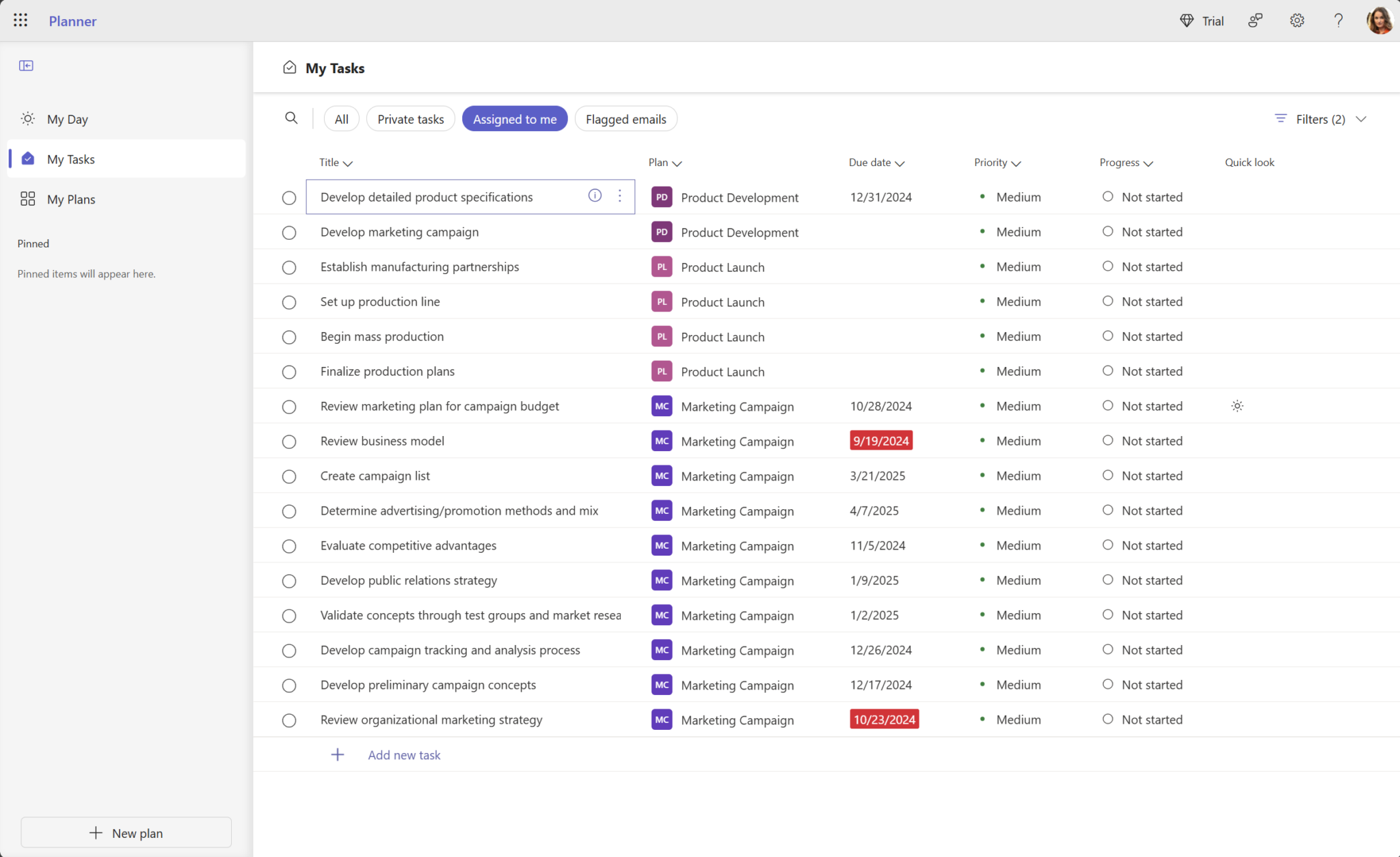
Microsoft’s published My Tasks example has Assigned to me selected and two active filters. Its 2024–2025 dates are sample data, not current work or proof of a missing task. Check the original plan and assignment, then compare the same task with the relevant filters cleared.[1] View full-size product image
A task absent from your daily list is not automatically deleted. Start with the task’s original plan and a direct link, then test the personal view. Recreating the work too early can produce a second task while the first still has an owner, files and a deadline.
This guide separates a missing task from a missing plan, an unassigned task and an intentionally narrow daily view. Use the same signed-in work account throughout the check. Keep the title, plan name and task link together so similarly named tasks are not mistaken for one another.
Identify which list should contain the work
My Tasks combines several sources. Private tasks are separate from plan tasks; Assigned to me includes assigned work from Basic and Premium plans and other supported Microsoft task sources. My Day is a daily focus list. It clears overnight without deleting unfinished tasks from their original plans.
[1]Planner in Teams also has My Plans filters such as Recent, Shared, Personal and Pinned. A plan missing from one filtered list is a different problem from a task missing inside an accessible plan. If Planner itself is absent from Teams, an administrator may need to check whether the app is enabled.
[4]Work from the source outward
- Open the exact plan. Ask the owner for its link if necessary. Record whether access fails or the plan opens.
- Find the task there. Check its current title, assignee and progress. Ask before changing ownership; a name resemblance is not evidence that the work belongs to you.
- Remove view restrictions. Review keyword and due-date, label, bucket or assignment filters. Clear them for the check, then restore the useful working view.
- Return to the personal list. Check Assigned to me separately from My Day and Private tasks.
Premium adds an important boundary: Microsoft says assigned Premium tasks appear in Assigned to me only for members of the group associated with the plan. That view also has limited Premium editing; open the plan for the full relevant fields. A missing personal-list entry does not justify granting broader access without the owner’s approval.
[2]Choose the next diagnostic step
| Observation | Check next | Useful evidence |
|---|---|---|
| Direct plan link is denied | Confirm the intended work account and ask the owner to verify membership | Exact plan URL, account and access error |
| Plan opens; task appears after clearing filters | Compare the previous filter with the task’s actual fields | Filter values and task identity |
| Task exists but another person is assigned | Confirm responsibility with the owner before editing | Current assignee and agreed handoff |
| Premium task opens but Assigned to me omits it | Have the owner check associated-group membership | Plan type and membership decision |
| Task disappeared only from My Day | Return to the original plan and personal task lists | Same task link and unchanged progress |
Run a small reconciliation, not a bulk reassignment
Use a harmless test task only if the owner approves. Give it an unmistakable title, record its link, assign the intended person and note where it appears. Change one variable at a time. Do not mass-add users, move production tasks or mark work complete just to make a dashboard change.
| Checkpoint | Expected evidence | Stop condition |
|---|---|---|
| Source plan | The intended person can open the original task | Access belongs to another account or group |
| Responsibility | The assignee and owner agree who performs the work | Assignment is disputed or unclear |
| View test | The same task is found in the appropriate unfiltered view | Only a different task with the same title appears |
| Handoff | Record the link, deadline, owner and remaining issue | The source cannot be confirmed |
Where the new time controls are available, My Tasks displays times in the viewer’s local zone. Compare the plan-zone view before changing an apparently wrong deadline. The Basic-plan time feature is rolling out gradually; a missing time control is not proof that the task is missing.
[5]If the same work account fails in several Microsoft 365 services, use the broader Microsoft 365 sign-in and service checks rather than changing Planner permissions at random.
Continue with the actual next task
If this started after reusing a project, reconcile what the copied plan contains. If only the next scheduled occurrence is absent, check the Basic recurring-task rules.
Frequently asked questions
Does a task missing from My Day mean it was deleted?
No. My Day resets overnight. Open the original plan before creating replacement work.
[1]Why is a task visible in its Premium plan but not Assigned to me?
Check membership of the group associated with that Premium plan. Microsoft makes this a condition for the personal assigned-task view.
[2]Should I assign the task to myself to make it appear?
Only after the current owner agrees. First establish whether the task is yours; changing assignment is a work handoff, not a harmless display fix.
Can a filter hide a task that is still in the plan?
Yes. Clear the relevant keyword and field filters, find the exact task, then restore the working view.
[3]Are Private tasks the same as tasks in a shared plan?
No. Private tasks are a separate My Tasks category. Confirm the original location before looking for a plan assignment.
[1]Can I edit every Premium field from Assigned to me?
No. Microsoft documents limited editing there. Open the Premium plan for all relevant fields.
[2]Where should I look when the plan is missing from Recent?
Check My Plans and its other filters, or use the owner’s exact plan link. Recent is not an inventory of every plan.
[4]Why does the deadline look different from a colleague’s?
If time controls are available, compare local and plan-zone displays. A display conversion alone does not change the stored task.
[5]Should I delete and recreate the task when it will not appear?
No. Preserve the original link and responsibility while investigating. A second copy can leave two competing deadlines and owners.
What should I send support if these checks do not explain it?
Send the task and plan links, plan type, work account, expected assignee, filters tested, timestamps and the exact failing view. Exclude sensitive task contents unless approved.


